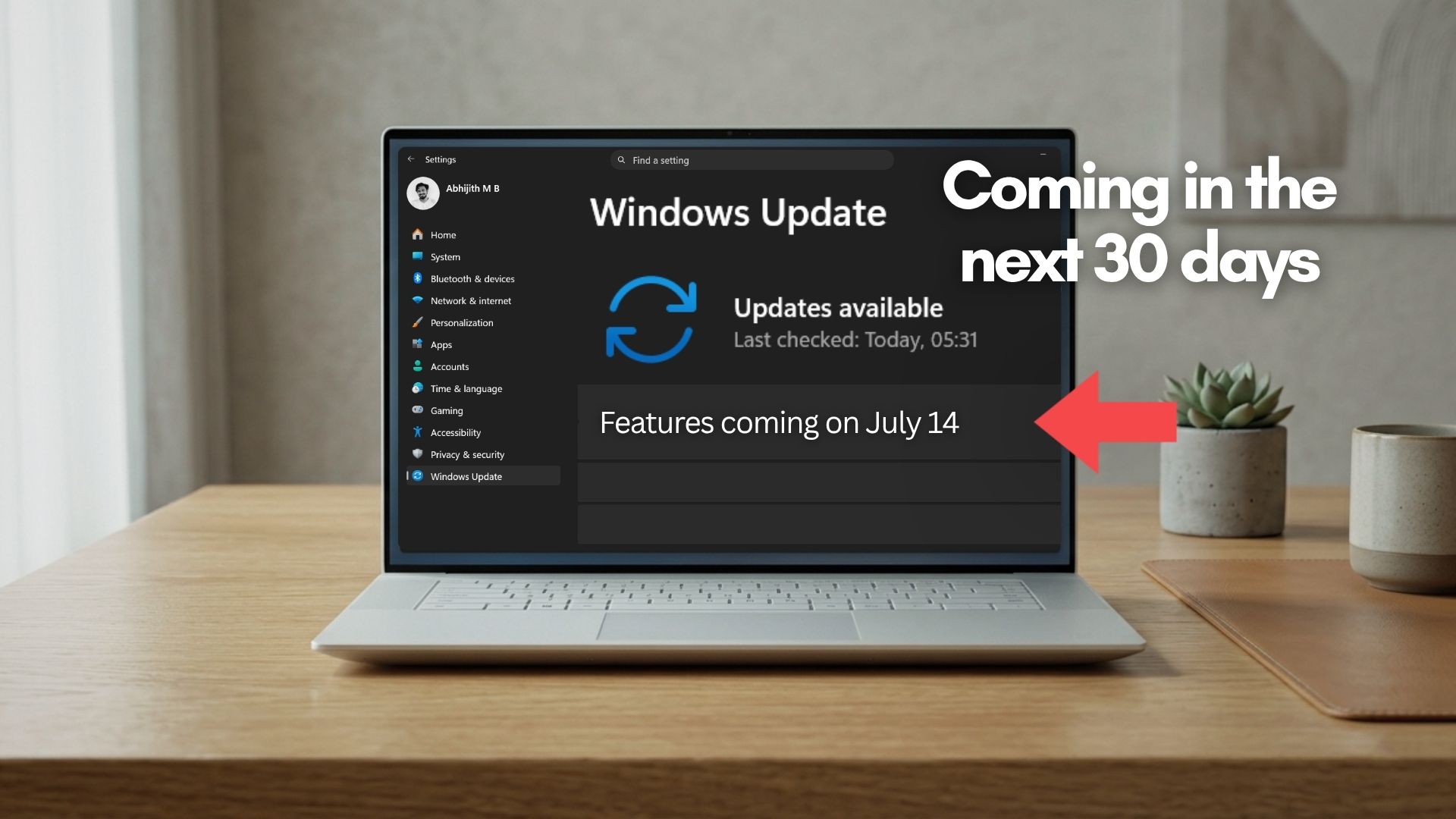
Yes, Windows 11’s CPU boost revives 8GB RAM PCs, here’s how to enable it right now
Windows 11's Low Latency Profile CPU boost is now available for older PCs too. I tested it on a Lenovo ThinkCentre M700 with a 6th Gen Intel Core i3-6100, no Turbo Boost, and single-channel RAM. Here's what the CPU scheduler actually does on decade-old hardware, and whether it makes a difference. The post Yes, Windows 11’s CPU boost revives 8GB RAM PCs, here’s how to enable it right now appeared first on Windows Latest
 admin
admin

Windows 11’s Low Latency Profile is built to speed up the Start menu, Search, and Action Center by instantly spiking CPU frequency the moment you interact with the shell. We tested it on a modern PC, confirmed it causes no harm to your CPU, battery, or thermals, and explained the race-to-sleep scheduler logic behind it. But what about genuinely old hardware? I put my dad’s Lenovo ThinkCentre M700 Mini Desktop with a 6th Gen Intel Core i3-6100 and 8GB of RAM, and put Low Latency Profile through its paces on decade-old silicon.
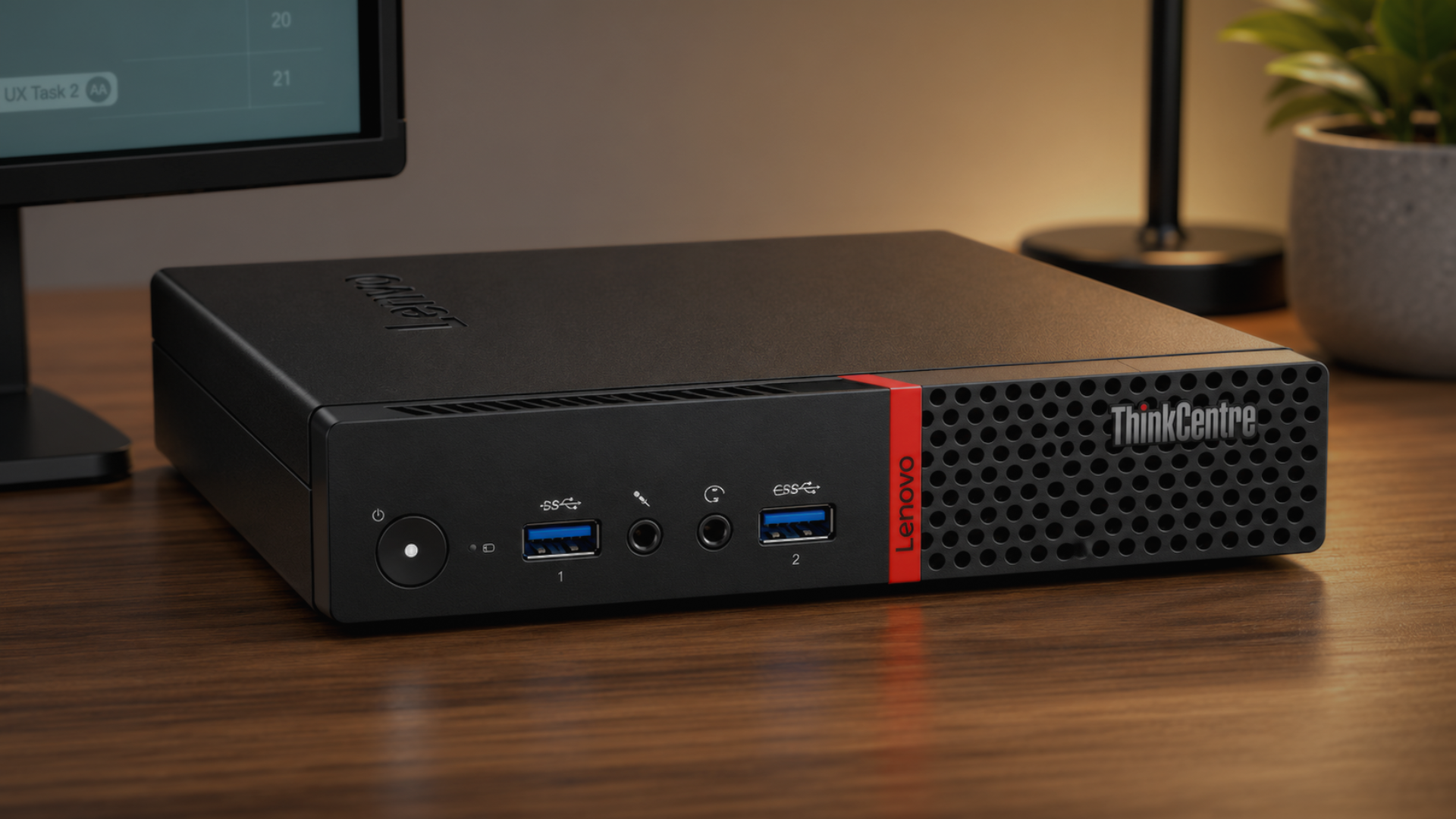
The ThinkCentre M700 is a compact 1-litre business mini-PC from 2016. Inside it runs a dual-core Intel Core i3-6100 (Skylake-S, 14nm, 51W), clocked at a fixed 3.7GHz with Hyper-Threading. Unlike most modern Core processors, the i3-6100 has no Turbo Boost at all. Its multiplier is locked, meaning 3.7GHz is its absolute ceiling.
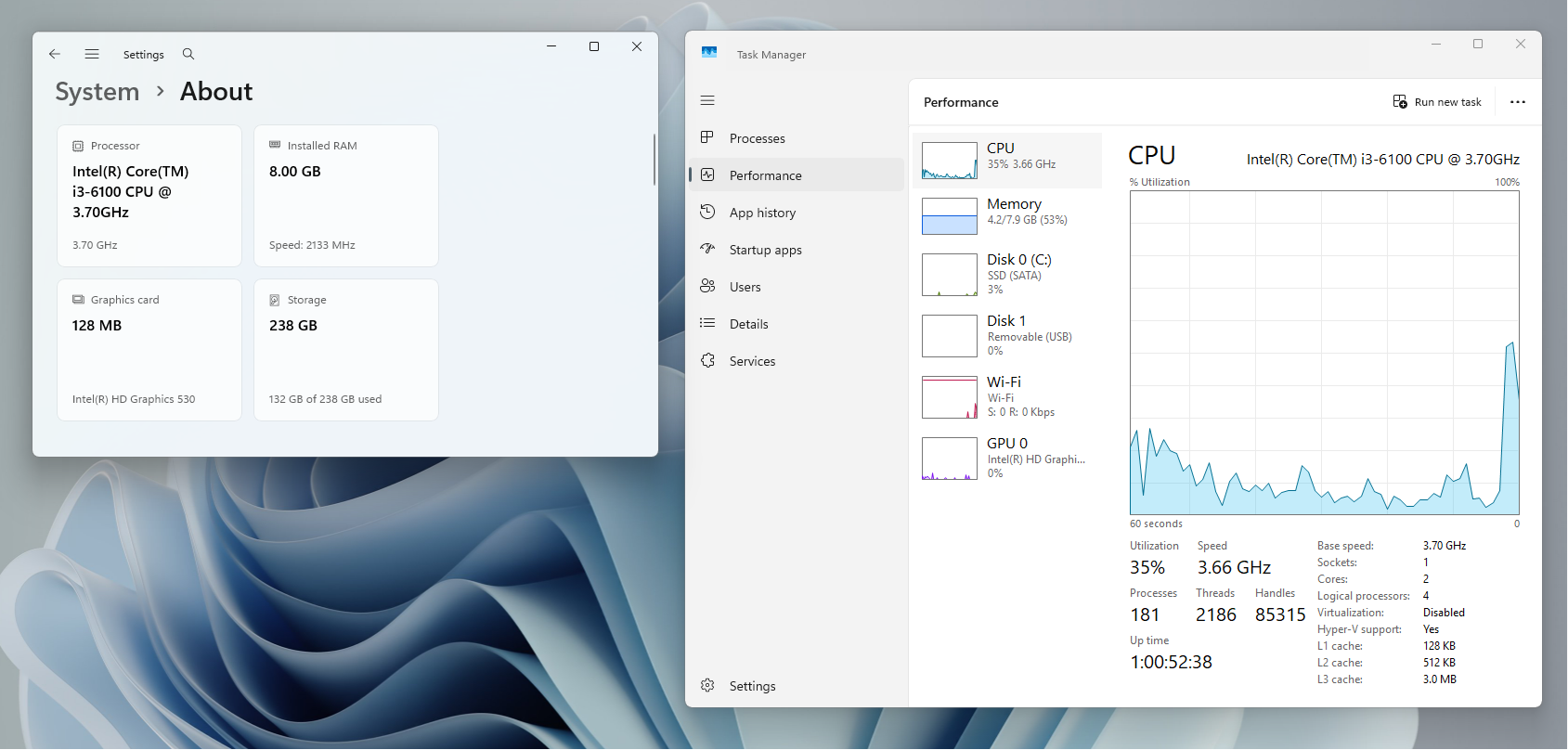
Running the June 2026 Patch Tuesday update (KB5094126), it has the necessary foundation for Low Latency Profile. Whether the feature can squeeze anything meaningful out of a no-turbo dual-core bottlenecked by single-channel RAM is the actual question.
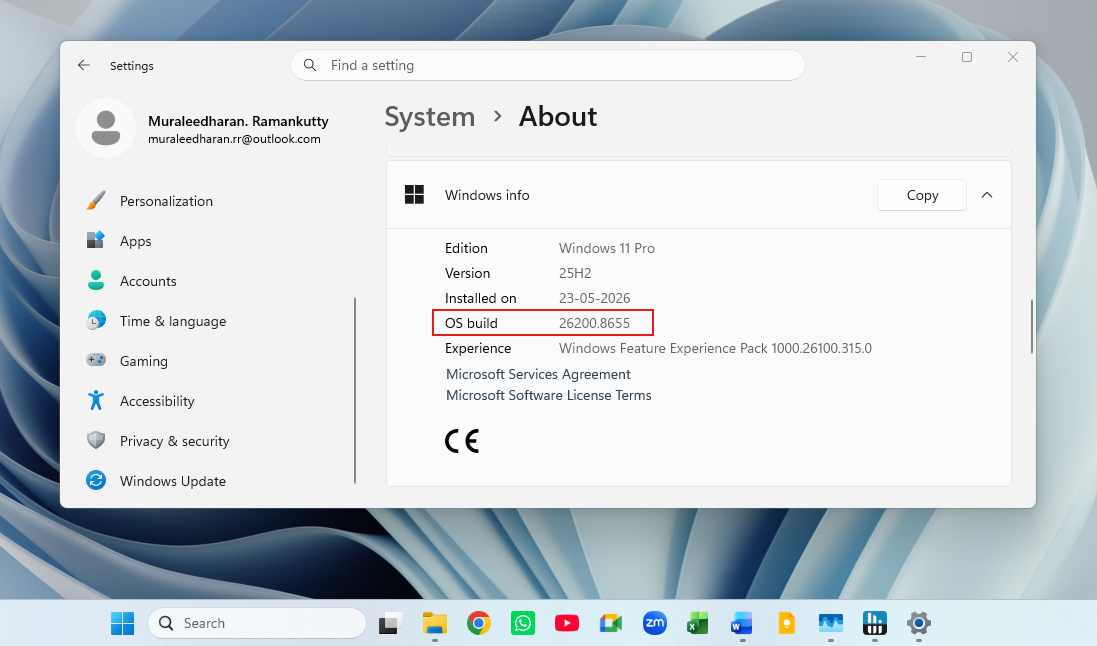
On modern processors, Low Latency Profile works by pushing CPU frequency from a low idle state up to the full turbo ceiling the instant you interact with Windows 11 shell experiences. On the i3-6100, there is no turbo ceiling to reach. The processor does have Intel Speed Shift Technology, which allows it to manage its own frequency transitions faster.
At idle under Windows, it drops to around 800MHz. Low Latency Profile’s job is to collapse that gap from idle to full speed in milliseconds instead of letting the scheduler ramp gradually. Before any testing, I had to force-enable the feature, since Microsoft’s Controlled Feature Rollout had not activated it on this older machine.
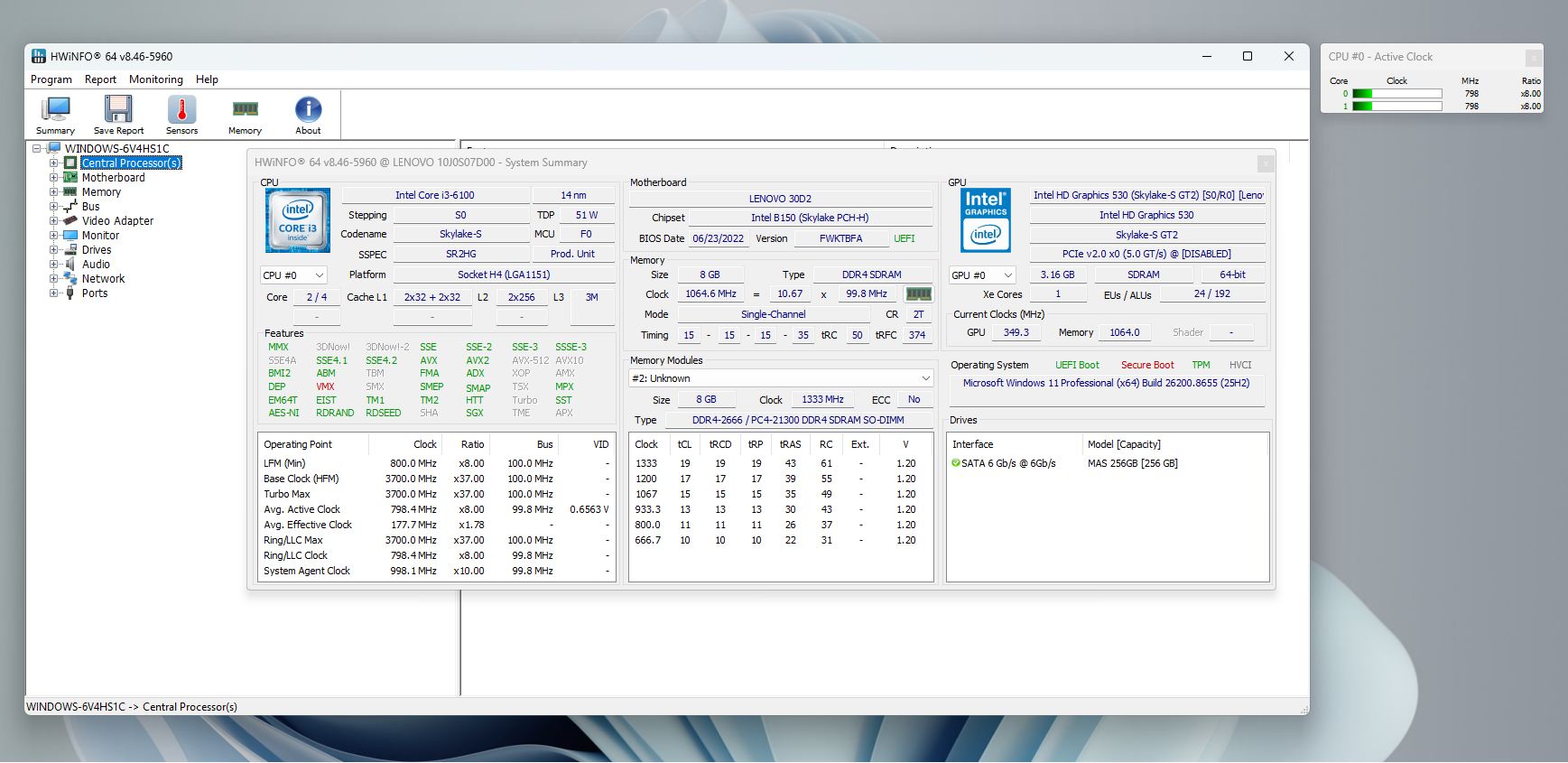
Before proceeding, note that this mini PC is not a slow machine. There is a bunch of heavy software on this machine, and Windows 11 runs really well on this device. I’m checking if Low Latency Profile can make it better on old hardware.
How to check and enable Low Latency Profile on older Windows 11 PCs
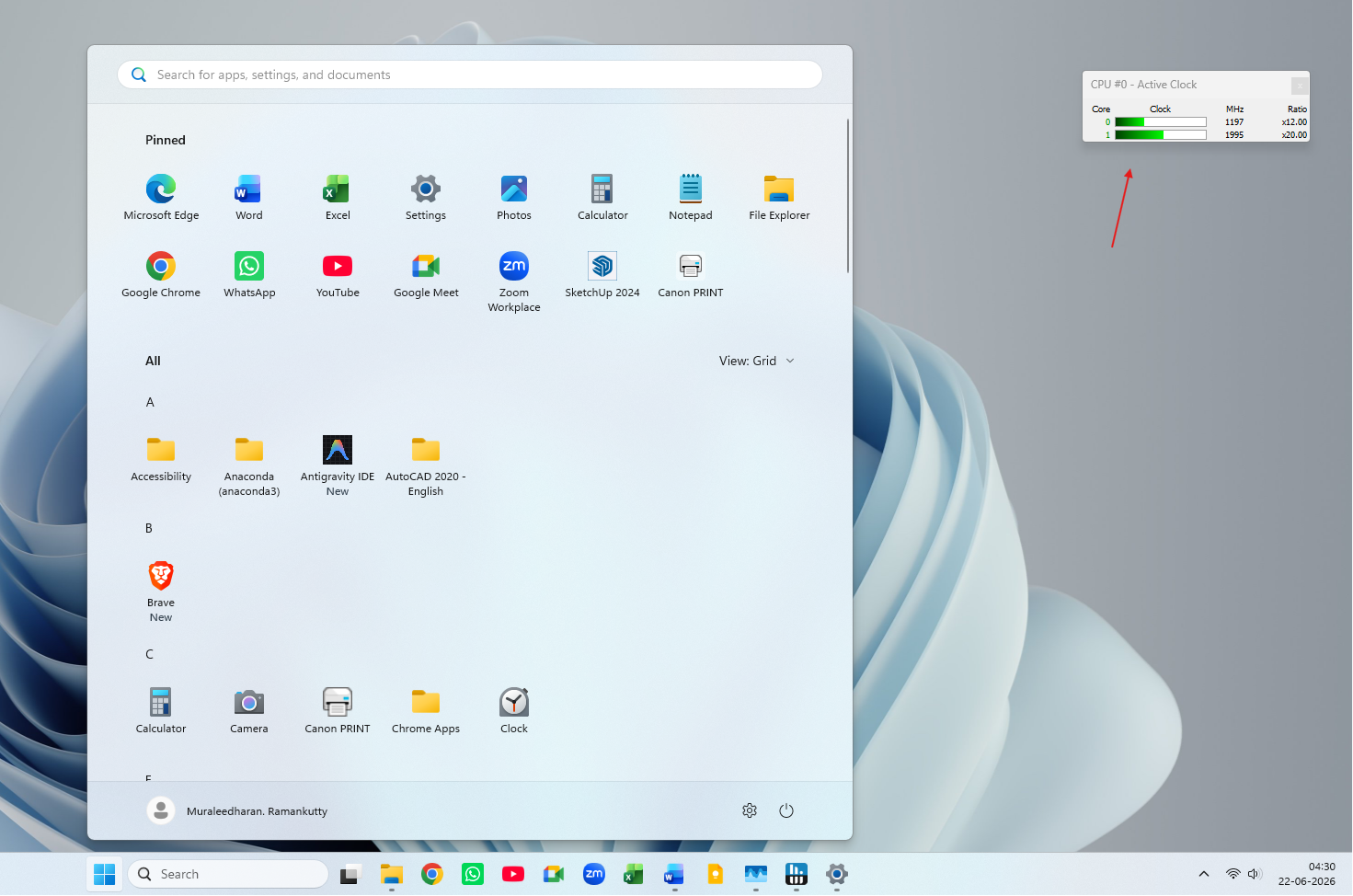
After installing KB5094126, open HWiNFO (free from hwinfo.com) and watch the CPU clock frequency while opening the Start menu, Search, and Action Center. If you see a sharp spike to the processor’s maximum rated frequency on each interaction, Low Latency Profile is already active. On the ThinkCentre M700, no such spike appeared after installing the June update, confirming CFR had not activated the feature.
To force-enable it: download ViVeTool from the official GitHub releases page, extract it to C:\ViVeTool, open Command Prompt with admin access, navigate with cd C:\ViVeTool, and run:
vivetool /enable /id:58989092
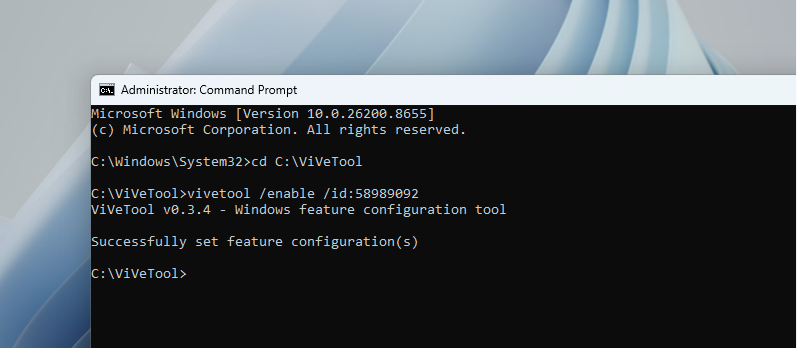
Restart the PC for the change to take effect. Our full guide on how to enable Low Latency Profile in Windows 11 covers each step with screenshots. The feature ID above is the same one Microsoft shipped with the June 2026 update.
Note: ViVeTool is a third-party tool. If your old PC is used regularly, I recommend that you wait until Microsoft remotely switches Low Latency Profile CPU boost on your device.
Before Low Latency Profile: what the Start menu feels like on a 3.7GHz dual-core
Before enabling the feature, I ran HWiNFO and Task Manager side by side. Opening the Start menu had a familiar and expected delay. The CPU frequency showed a ramp to between 2GHz and 2.8GHz.
Note that you should look at the CPU Speed and not the CPU Utilization, which are completely different. Search and Action Center had similar results.
Testing Low Latency Profile on a very old Windows 11 PC
After enabling Low Latency Profile and restarting, the HWiNFO readout changed immediately. Every shell interaction produced a fast, sharp jump from around 800MHz to 3.0GHz to 3.7GHz within milliseconds. On the ThinkCentre M700, the improvement was more noticeable than on my regular PC, which is what we predicted when we first tested the feature. On faster modern hardware, Low Latency Profile adds smoothness. On a PC from 2016, it reduces perceived delay.
Start menu and Windows Search with Low Latency Profile
The Start menu had a clear improvement. The menu appeared faster, and HWiNFO confirmed the CPU hit 3.7GHz almost immediately after the trigger. With no Turbo ceiling above 3.7GHz, that is every clock cycle this chip has available. Intel Speed Shift makes that transition happen at the hardware level, faster than an OS-level scheduler call can.
Search appeared more quickly, and since the CPU was already at full speed, typing felt more responsive. CPU utilization in Task Manager was low during all interactions, but not at a minimum, unlike what we observed in our full testing on a modern system.
Action Center with Low Latency Profile
Action Center was the best of the three. The flyout appeared significantly more smoothly than before. The CPU frequency jump was the same as with Start and Search, but since Action Center was already the fastest of the three shell elements on this hardware, the delta is more in the smoothness department.
Truth be told, these screen recordings are not doing justice to what I’m seeing with my eyes. So, here is a 60fps video shot on my smartphone, showcasing the Action Centre after enabling Low Latency Profile:
Does Low Latency Profile work on old Windows 11 PC?
Yes. The ThinkCentre M700 is a desktop, so battery life is irrelevant. On thermals, CPU utilization did not increase during any shell interaction, so heat output does not change. Low Latency Profile pushes the i3-6100 to its rated 3.7GHz faster than before. The full explanation of why this feature is safe for CPU, battery, and thermals applies here just as it does on modern hardware.
If your old PC is running Windows 11 with the June 2026 update, check HWiNFO for the frequency spike behavior described above. If it is not already active, enable it with ViVeTool. On hardware this constrained, even a few hundred milliseconds shaved from the Start menu ramp-up time is worth having. And with Microsoft’s WinUI 3 shell rewrite progressing alongside these scheduler improvements, the old ThinkCentre M700 is arguably in the best shape it has ever been on Windows 11.
The post Yes, Windows 11’s CPU boost revives 8GB RAM PCs, here’s how to enable it right now appeared first on Windows Latest