Microsoft reveals why Windows 11 keeps saying a file is in use after you close the app, plus the fix
Microsoft's Azure CTO Mark Russinovich has finally explained why Windows says a file is 'in use' even after you've closed the app - antivirus scans, DLLs mapped in memory, and network processes are the usual culprits. Here's how Handle and Process Explorer can identify what's holding the file. The post Microsoft reveals why Windows 11 keeps saying a file is in use after you close the app, plus the fix appeared first on Windows Latest
 admin
admin
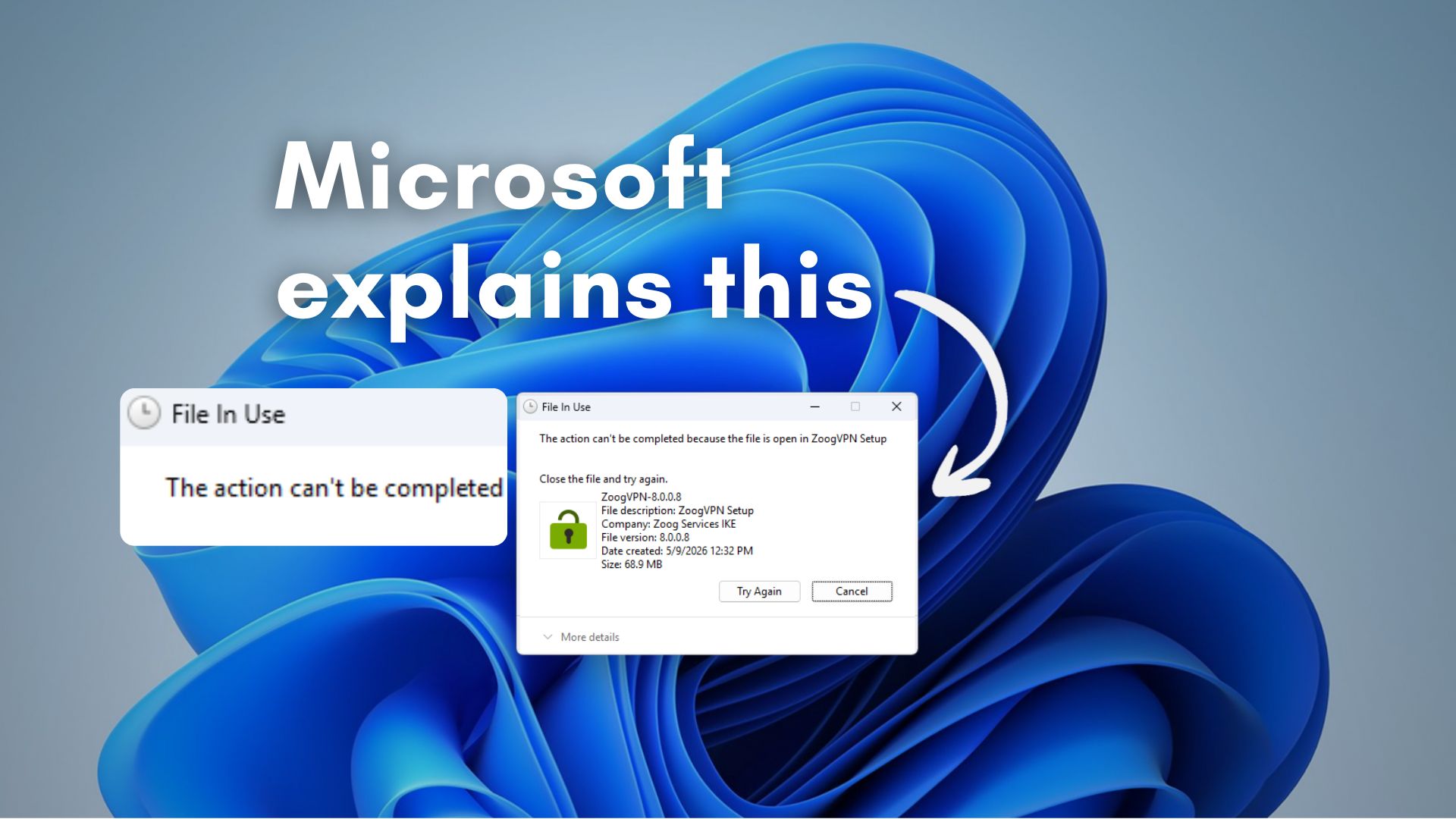
If you are an avid Windows user, there might’ve been times when you tried to delete or rename a file in Windows and saw the message “The action can’t be completed because the file is open in another program”.
Well, as it turns out, Windows has been showing this error for decades, and it does not always mean what it says. Mark Russinovich, the now Azure CTO and Technical Fellow at Microsoft, recently addressed this issue. Russinovich, who first ran into this problem in the 1990s, created two tools specifically to deal with it.
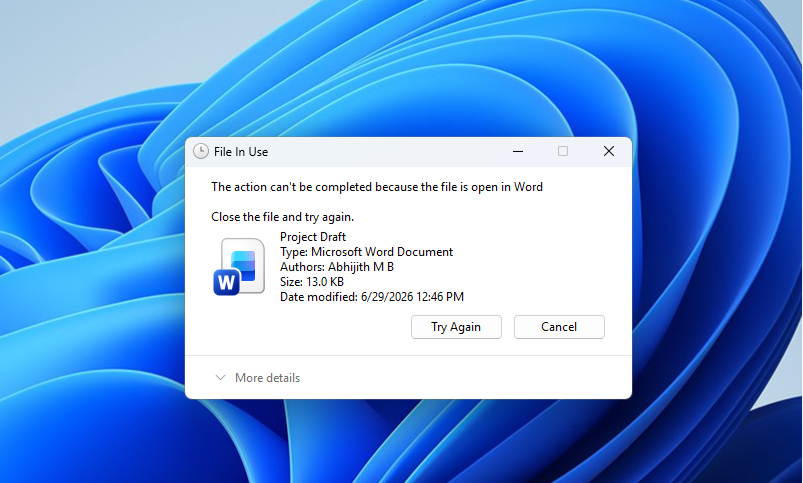
What does ‘file in use’ error mean in Windows?
Yes, it is exactly what it sounds like, but here is a more technical explanation. Every time a program opens a file, Windows creates what is called a file handle.
A file handle is essentially a reference that Windows uses to track which program has access to which file at any given moment. Windows will not let you delete or rename a file while an open handle to it exists, because doing so could corrupt data that the program is still working with.
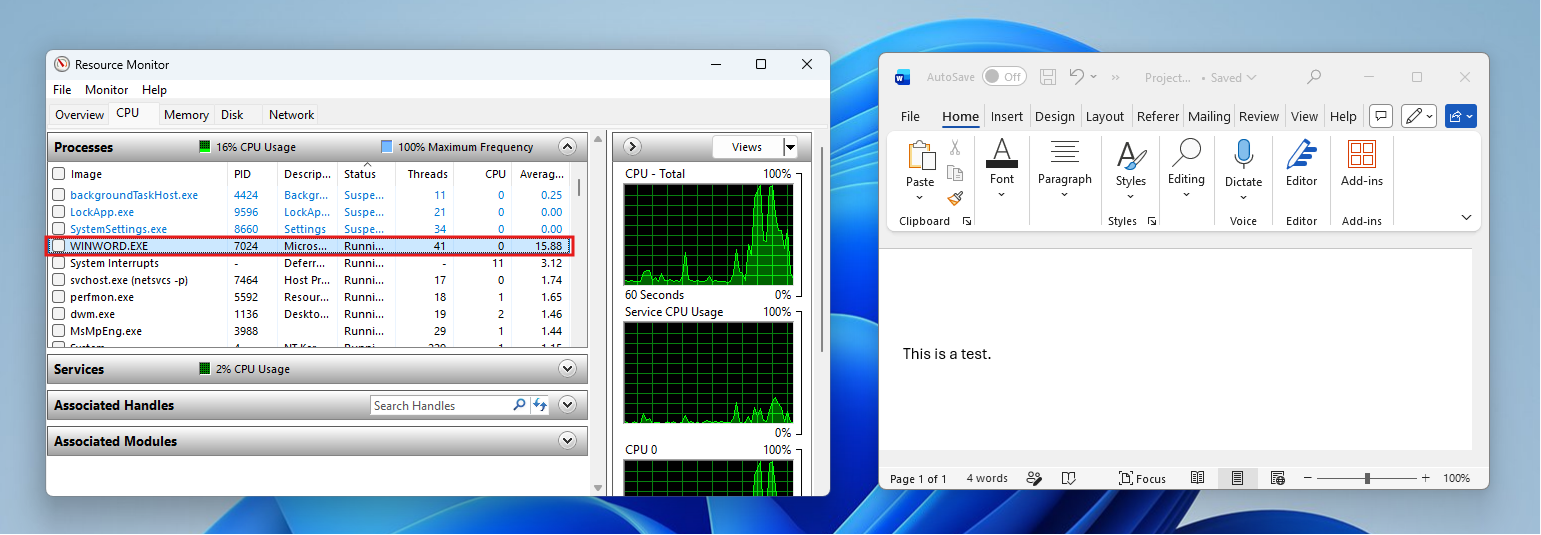
Normally, when you close an app, Windows releases those handles. But, as we have all experienced, closing the visible application does not always mean every handle is gone.
Why closing an app does not always release the file
Russinovich identifies three common reasons why a file stays locked after you think you’ve closed the program using it.
- First, your antivirus software may be scanning the file. When antivirus runs a scan, it opens a file handle at the system level. Even if Media Player or Word has fully closed, the antivirus process can be scanning the same file in the background and holding it open.
- Second, the file might be referenced from another PC on your network. If another device on the same network performed an operation that opened the file, that remote process may still hold a handle to it.
- Third, and the trickiest, is the DLL scenario. If the file in question is loaded into a process as a DLL (Dynamic Link Library), it does not show up as a file handle at all. Instead, it shows up as an in-memory reference. You won’t see any open handles listed by standard tools, but the file is still locked because it is mapped into an application’s address space. To release that lock, you have to terminate the entire application that has it mapped.
How to find which process is responsible for “file in use” error
Back in the 1990s, Russinovich built a command-line tool called Handle specifically because he ran into this problem himself. Handle is part of the Sysinternals suite, a set of advanced Windows utilities that Microsoft now maintains.
Running Handle from an administrator command prompt shows every open file handle on the system, along with the process name and ID responsible for each one. You can search for a specific file name to cut straight to the answer.
Process Explorer is the graphical companion. It was also built by Russinovich, and as we noted in our earlier coverage of Microsoft’s admission that Windows 11 is still built on 90s-era Win32, Russinovich himself said he would have bet against his own Sysinternals tools still being relevant in 2026. Yet here we are, and Process Explorer remains one of the most practical diagnostic tools available on Windows.
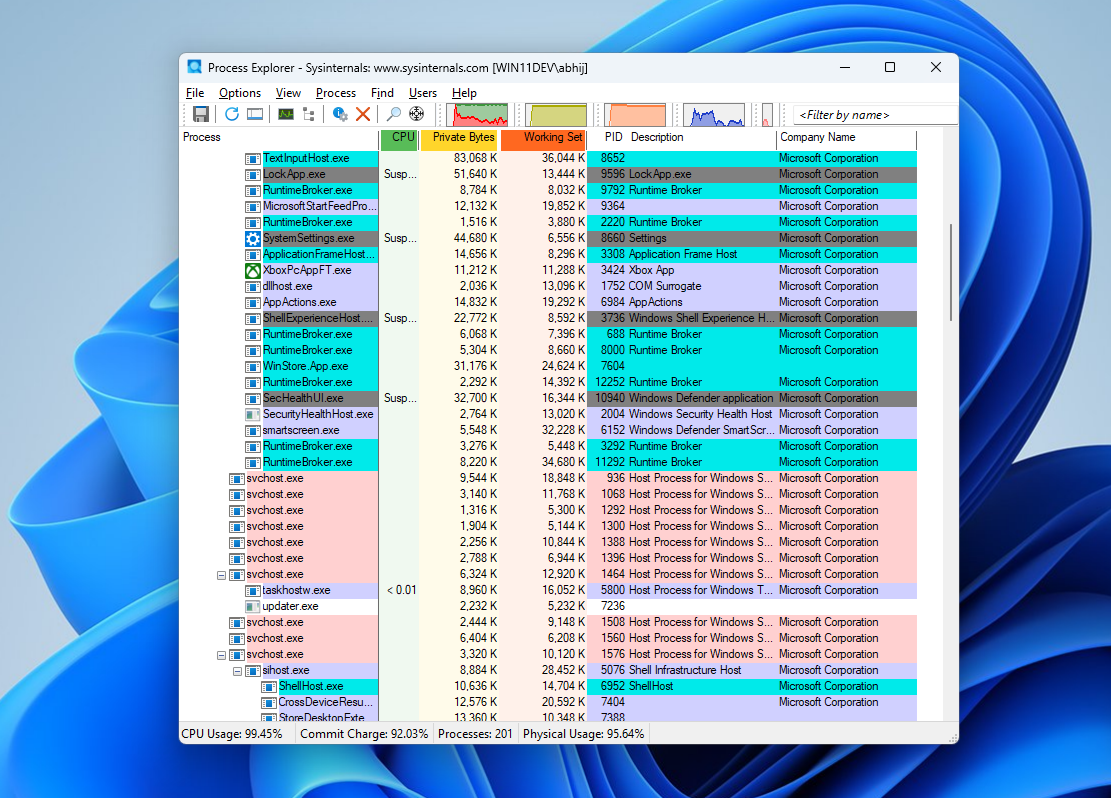
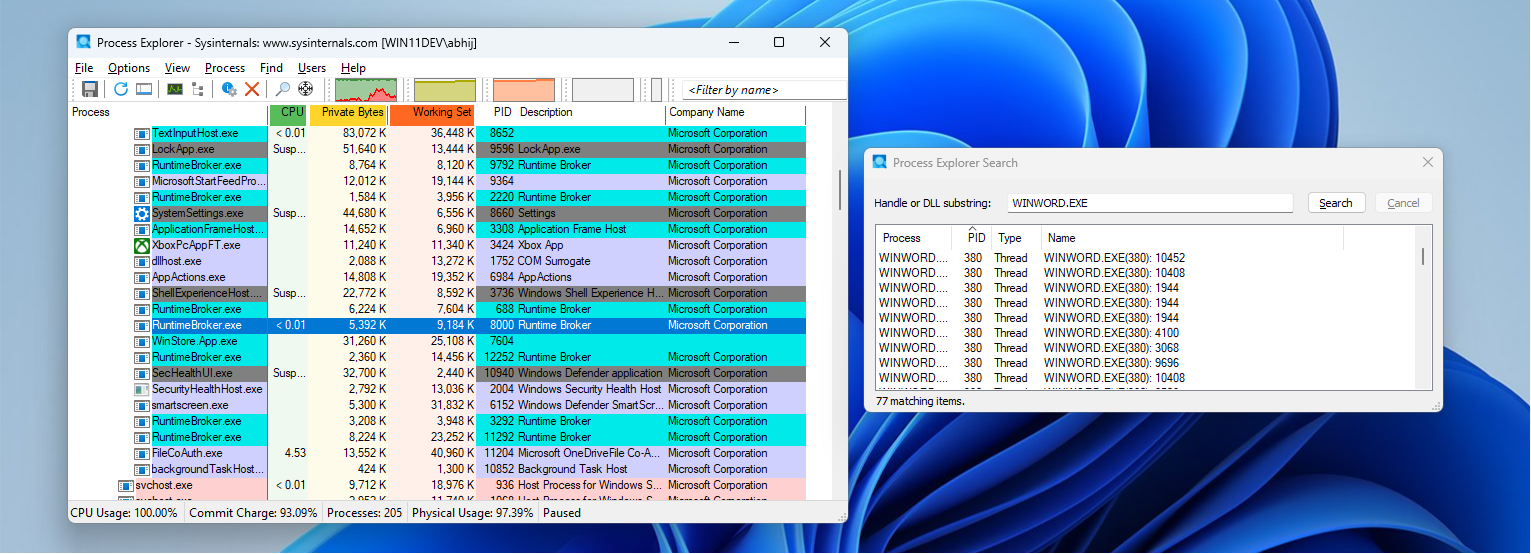
Inside Process Explorer, pressing Ctrl + Shift + F opens the Find Handle or DLL search window. Typing the name of the locked file shows which process has it open. From there, you can right-click the process and close the handle directly, or terminate the process, before retrying to delete.
Sysinternals in PowerToys, the easier option for regular users
If the command line feels like too much, Microsoft has a friendlier option. As Windows Latest reported in 2024, Mark Russinovich himself suggested integrating Sysinternals tools into PowerToys, and that idea has been gaining traction.

PowerToys already includes File Locksmith, a tool that lets you right-click a file, select ‘Unlock with File Locksmith’, and immediately see a list of every process holding that file open. You can end the offending process from the same window and then delete the file without going anywhere near the command line.
Workaround that Microsoft recommends to fix “file in use” error
Russinovich also shares a practical workaround in the video you can watch above. If you cannot immediately terminate the process holding a file, you can rename the file instead of deleting it. Windows lets you rename a file even when it is open in some contexts.
After renaming it, you can drop a fresh copy of the file with the original name in the same location, and any other process that needs it will pick up the new version. The renamed old copy can then be deleted once the process holding it finally releases its handle.
The issue has been part of Windows for as long as the OS has existed. At least now we got Microsoft to admit it along with a practical explanation.
Russinovich has spent decades building tools to show what Windows hides from plain view, and the fact that those tools are still necessary in 2026 says plenty about how deep this particular issue is baked into the OS.
The post Microsoft reveals why Windows 11 keeps saying a file is in use after you close the app, plus the fix appeared first on Windows Latest