Microsoft just killed Windows 11’s forced updates with new calendar pause, here’s how to delay them forever
Microsoft has replaced Windows 11's fixed-week update pause dropdown with a calendar date picker that lets you pause up to 35 days at a time, with no limit on resets. Driver, .NET, and firmware updates are also consolidating into Patch Tuesday, cutting multiple monthly reboots down to one. The post Microsoft just killed Windows 11’s forced updates with new calendar pause, here’s how to delay them forever appeared first on Windows Latest
 admin
admin
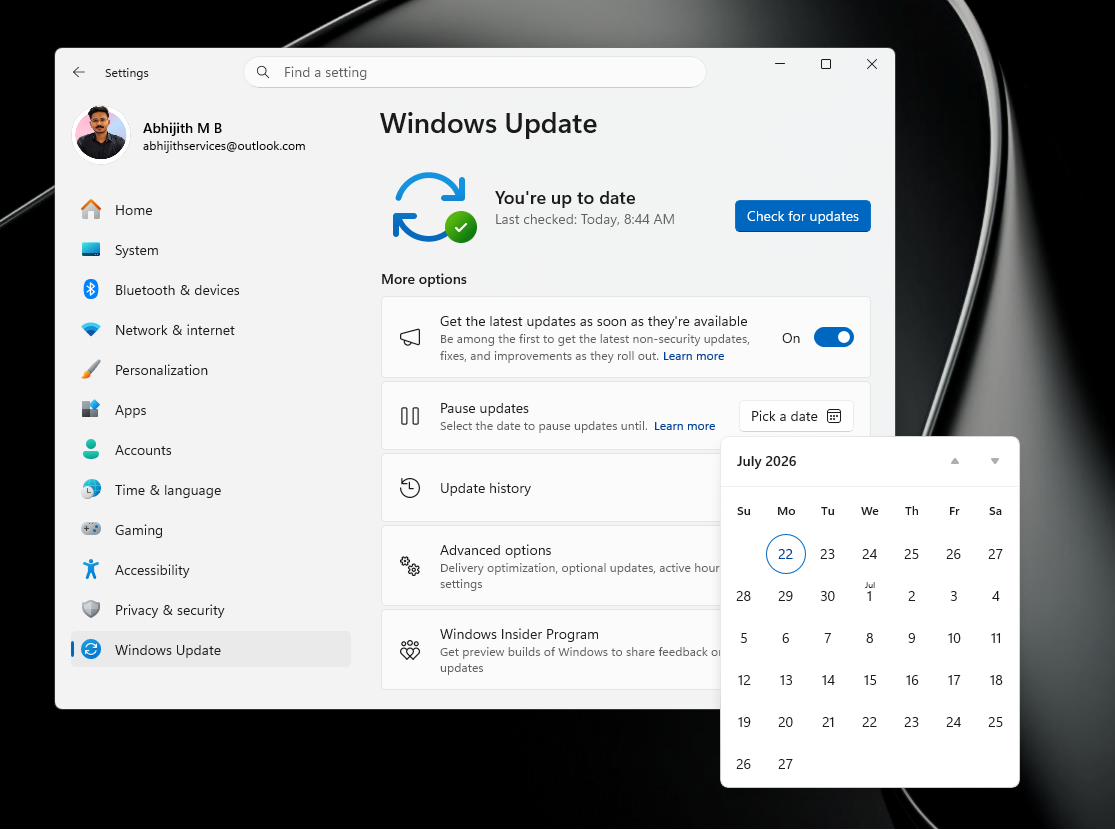
Microsoft has started rolling out a new calendar-based pause option for Windows updates, and the company has also confirmed that you can extend an existing pause again later, as long as the new end date is within 35 days from the current date. This change is live with Windows 11 KB5095093.
That means Windows updates are still not permanently disabled, but in practice, you can keep delaying them if you manually extend the pause before it expires. If you do nothing, Windows will automatically resume updates when the pause period ends.
You can now pick a specific end date for pausing updates, up to 35 days out, which gives you a much cleaner way to block updates around travel, a busy work stretch, or any other window where a surprise reboot would be painful.
How the new Windows Update calendar pause works
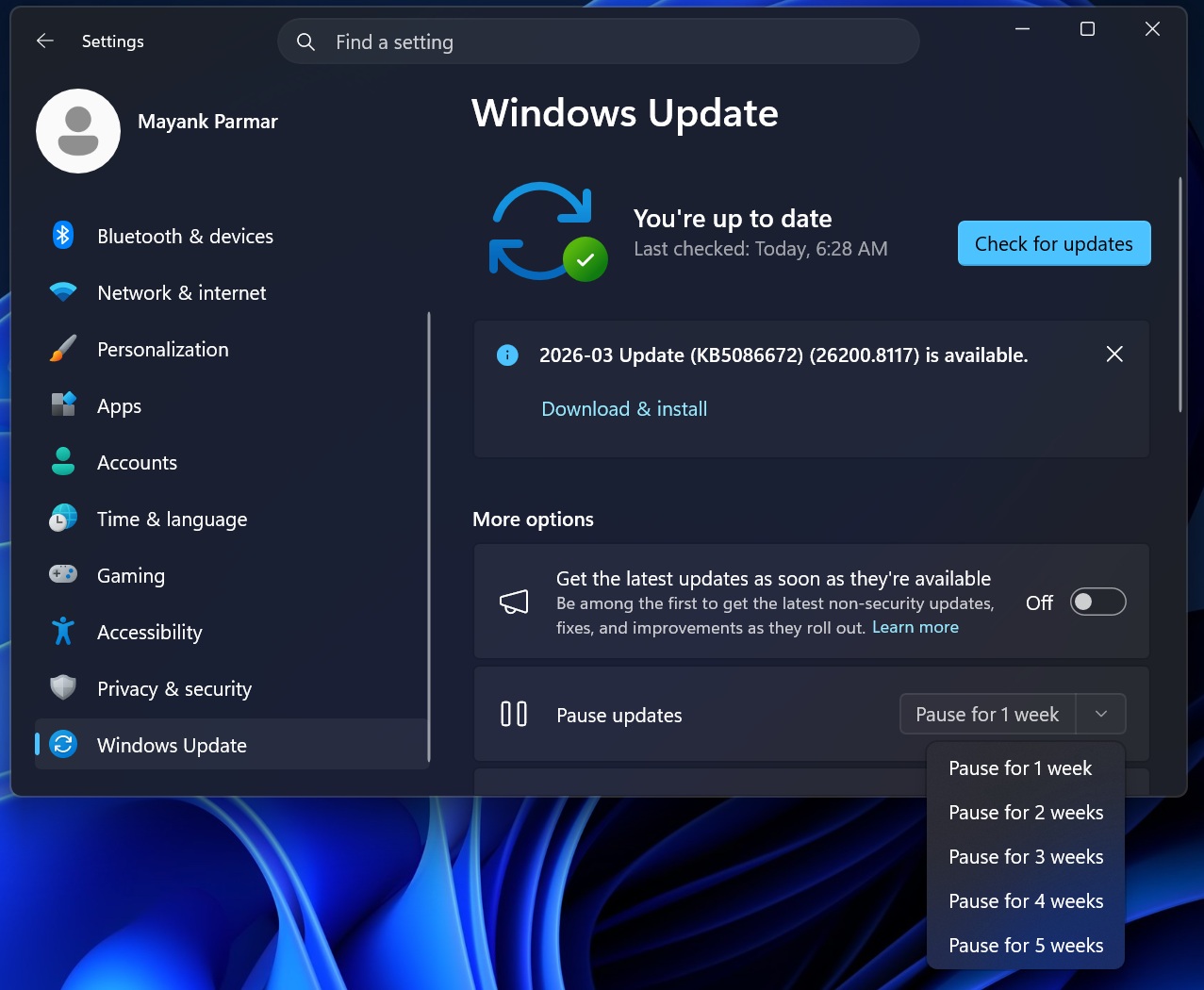
The new experience replaces the old dropdown that offered fixed one-week increments. Instead of picking “pause for 1 week” or “pause for 4 weeks,” you now select a specific date from a calendar view directly in Settings > Windows Update. The 35-day window has not changed, but the date picker makes it easier to align the pause with a real deadline rather than counting weeks in your head.
Microsoft is explicit that the calendar pause is not a permanent fix for updates. When the pause ends, Windows checks for updates again and may need to re-download and install anything that was pending.
A few behaviors to keep in mind during a pause:
- Updates that require a restart will not download or install until the pause ends.
- Windows will not restart automatically to finish the update installation while paused.
- Any updates already in progress when you set the pause are canceled.
- When the pause expires, Windows immediately checks for, downloads, and installs the latest available updates. However, you can manually re-pause updates before the expiry.
- You can resume updates manually at any time. When you do, Windows checks for updates and installs the latest available updates.
How to set up the calendar pause in Windows Updates
To set a pause end date:
- Open Settings from Start.
- Go to Windows Update.
- Select Pick a date on the Pause updates control.
- Pick your end date from the calendar.
You can now extend the Windows Update pause again later
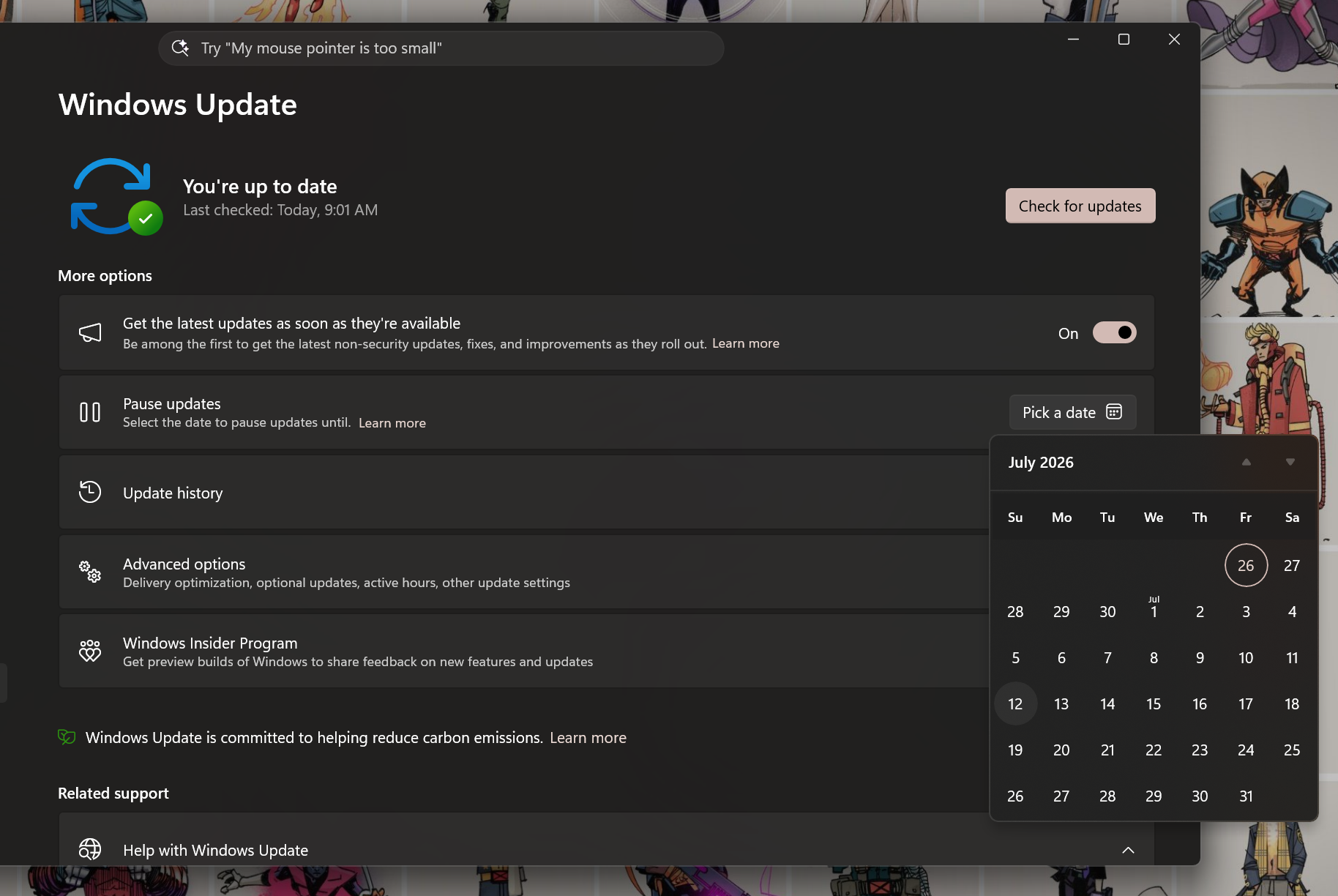
You should also note that updates can only be paused for up to 35 days from the current date, which prevents you from trying to select a date in a future month beyond the supported pause period.
However, if you’re truly diligent and really dislike updates, you can manually reset the pause window by going in and choosing a new end date from the same calendar. When you are close to your current paused update deadline, you can go back to Windows Update settings and pick another date, again up to 35 days from the current date.
The important part is that previously paused time does not get added on. For example, if you have already paused updates for 20 days, Windows will not let you add 35 more days on top of that old pause period. The new end date can only be up to 35 days from today.
Microsoft also says you can extend the pause again later, as long as the new end date is still within 35 days from the current date. So yes, this effectively lets you keep delaying Windows 11 updates if you continue extending the pause manually, though that is not a strategy anyone should lean on given the security implications.
If you do nothing, updates resume automatically when the pause expires to help keep your device secure and reliable.
Driver, .NET, and firmware updates will soon consolidate into one monthly restart
If you finally succumb to an update or your IT manager foists one upon you, Microsoft is also addressing that process by reducing the number of reboots required to install different update components.
According to Microsoft, this change is currently live in the Windows Insider preview channels, but it’ll roll out to the public soon.
“We are starting by coordinating driver, .NET, and firmware updates to align with the monthly quality update, reducing update experience to a single monthly restart,” the company said in a document.
The usual process of Windows downloading updates in the background remains. The change is more about when Windows installs those components and asks you to restart. If you’re not bothered by updates, you are still free to manually update your system when the updates become available.
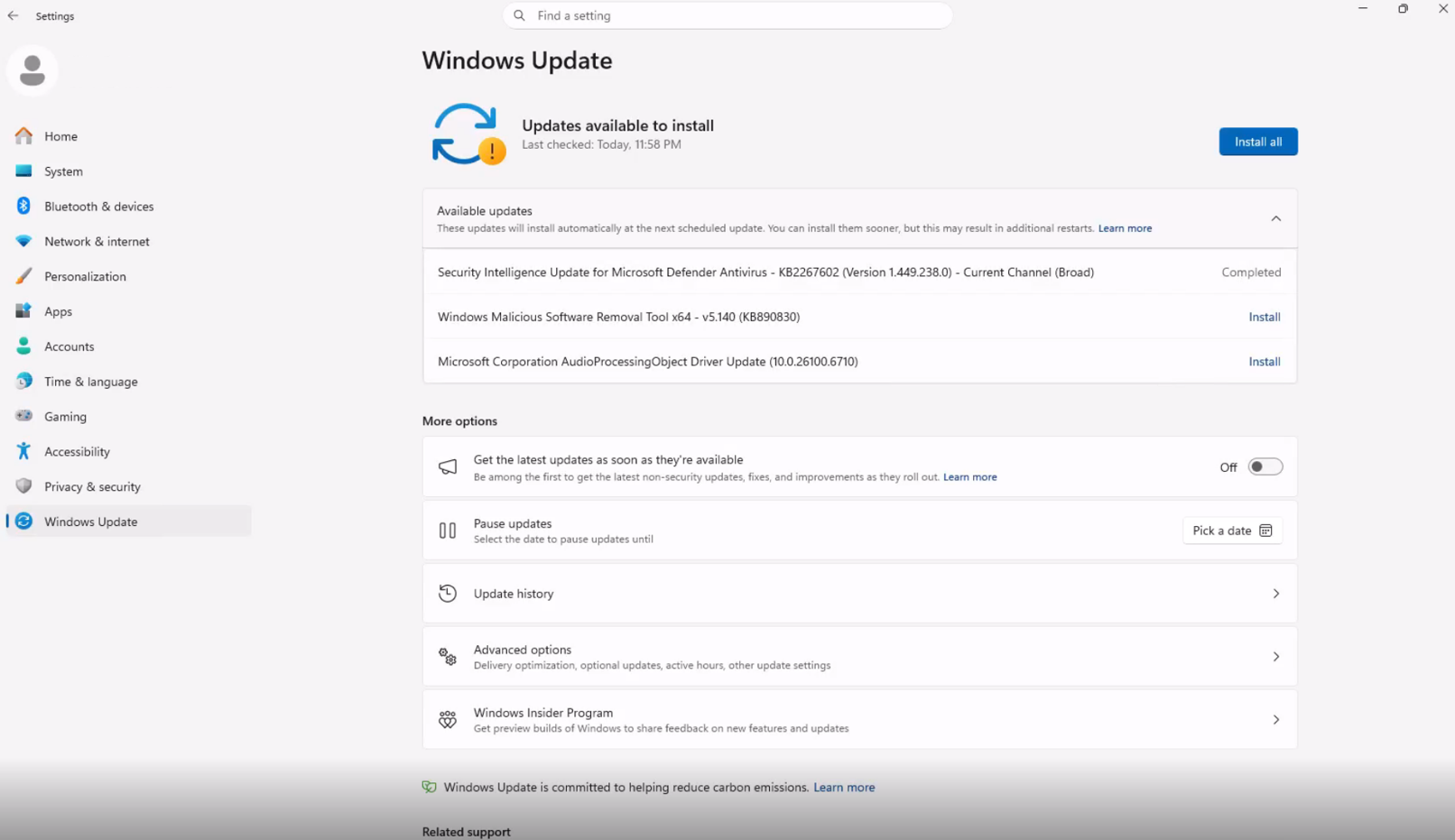
If you want to know exactly what’s being downloaded during these bundled updates, you can:
- Hit the Windows button.
- Navigate to Settings.
- Choose Windows Update.
- Use the expand/collapse button to see the full list of installations.
Shutting down without installing updates is also fixed
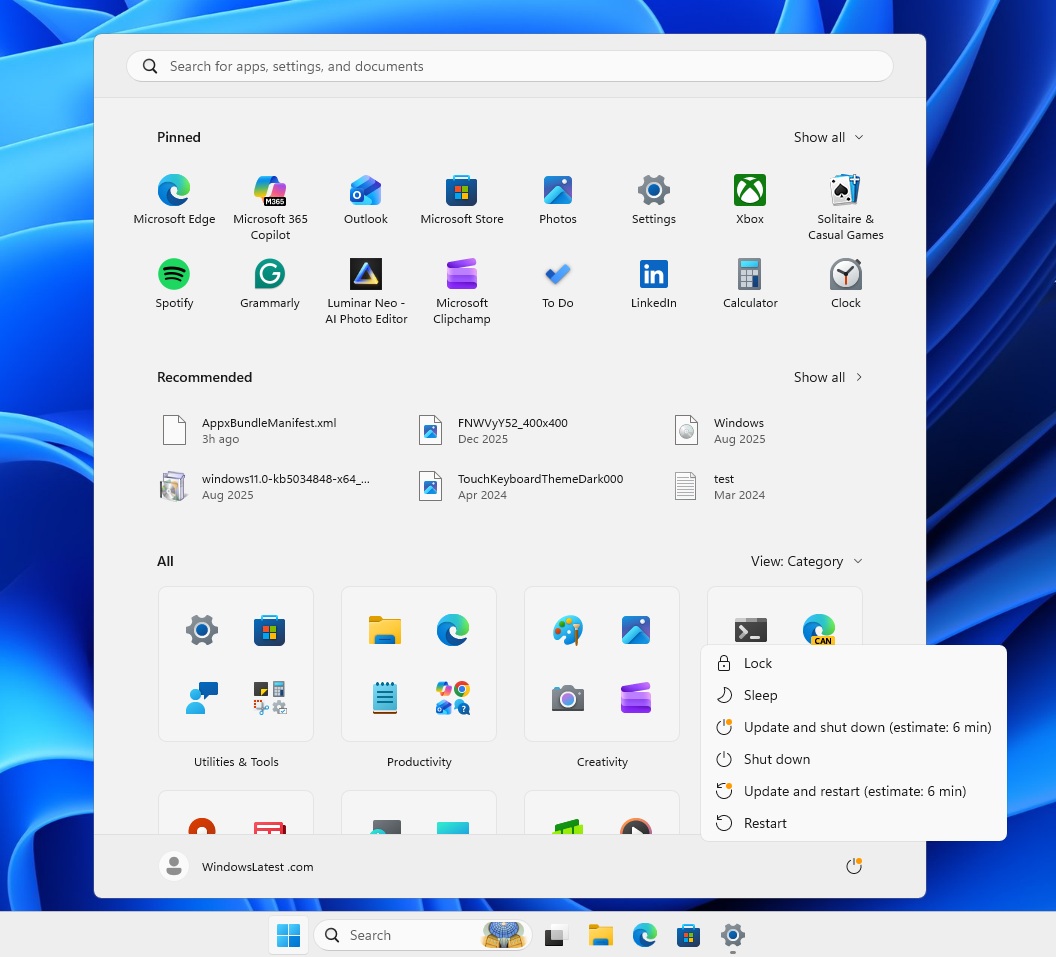
Alongside the calendar pause and the single-restart cadence, Microsoft has also fixed the “Update and shut down” behavior that has frustrated users for years. The Power menu will now always show the standard Restart and Shut down options, even when updates are waiting.
Clicking Shut down will shut down the PC; it will not silently install pending updates first. We tested this in Build 26300.8289 and confirmed it works as expected.
When these changes arrive on your PC
The calendar pause is already shipping in the June optional update KB5095093, confirmed in our hands-on coverage of that release. The single monthly restart and Power menu fix are currently available to Windows Insiders in the Experimental and Beta channels. And they’ll begin rolling out to everyone in the coming weeks.
The post Microsoft just killed Windows 11’s forced updates with new calendar pause, here’s how to delay them forever appeared first on Windows Latest