I built a Linux container on Windows 11 without Docker Desktop, and Docker users should pay attention
WSL Containers is now in public preview, letting Windows 11 build and run Linux containers without Docker Desktop. We installed the pre-release build, created a container from a Containerfile, tested GPU passthrough, and checked how ready it is for real workflows and enterprise use. The post I built a Linux container on Windows 11 without Docker Desktop, and Docker users should pay attention appeared first on Windows Latest
 admin
admin

Windows 11 can now build, run, and manage Linux containers on its own, without Docker Desktop in the background. Microsoft calls this WSL Containers, and after installing the preview and running a few real workloads through it, here is what works, what still needs Docker, and how to get it running on your own PC.
WSL Container should not be confused with the next version of WSL 2, as we already covered how Microsoft shut down the WSL 3 rumors. It has now shipped as a public preview, so we installed it, built a custom container image from scratch, and pushed it through a few workflows to see where it holds up.
What is WSL Container in Windows 11
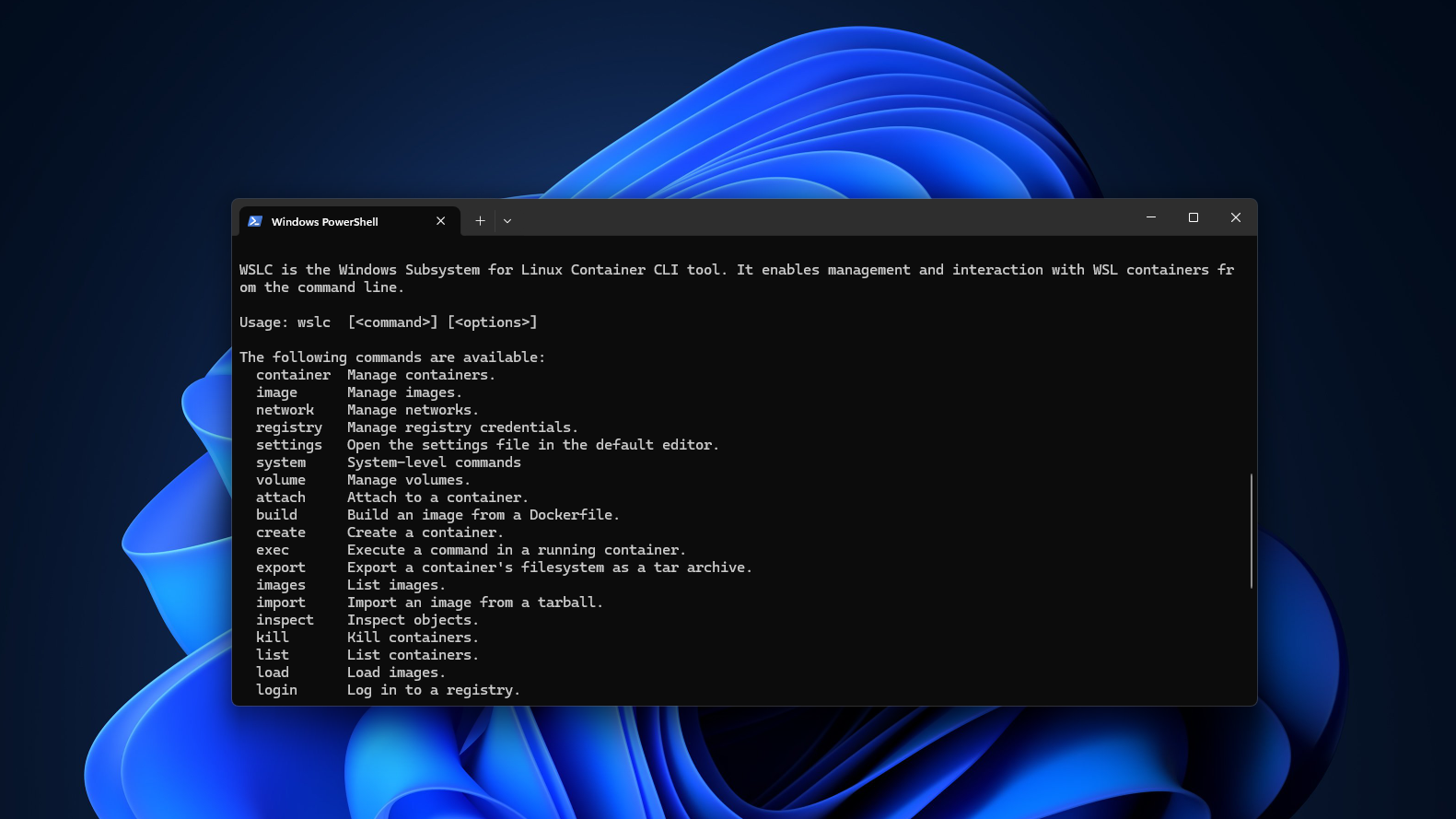
WSL Container is a built-in feature of the Windows Subsystem for Linux that lets you create, run, and manage Linux containers directly from Windows, without installing Docker Desktop, Podman Desktop, or any other third-party runtime. It ships in two parts:
- The first is wslc.exe, a command-line tool that is added to your PATH as soon as you update WSL. Microsoft also ships an alias called container.exe, so both commands point to the same binary. Anyone who has used Docker before will recognize the syntax, since commands like wslc run, wslc build, and wslc container list look like Docker’s own structure almost one-for-one.
- The second part is a WSL Container API, distributed as a NuGet package with support for C, C++, and C#. Windows application developers can use it to embed Linux containers directly into their own apps.
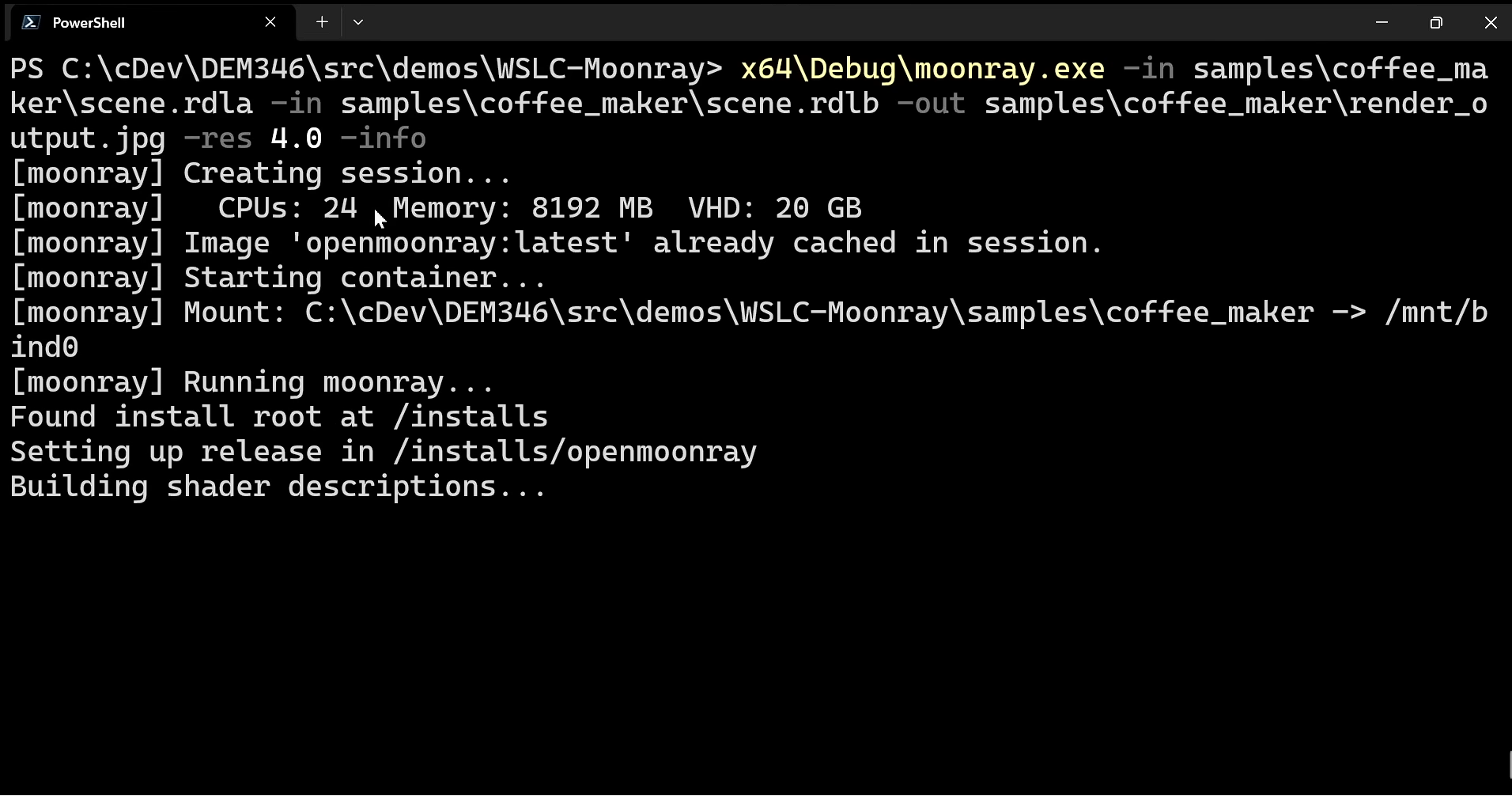
Instead of asking users to install a separate runtime, a Windows app can quietly spin up a Linux container in the background to run a piece of Linux-only code, then tear it down when the task finishes. Microsoft demoed this with Moonray, an open-source Linux rendering engine used on films like The Wild Robot, running inside a Windows executable with no visible sign that Linux was involved at all.

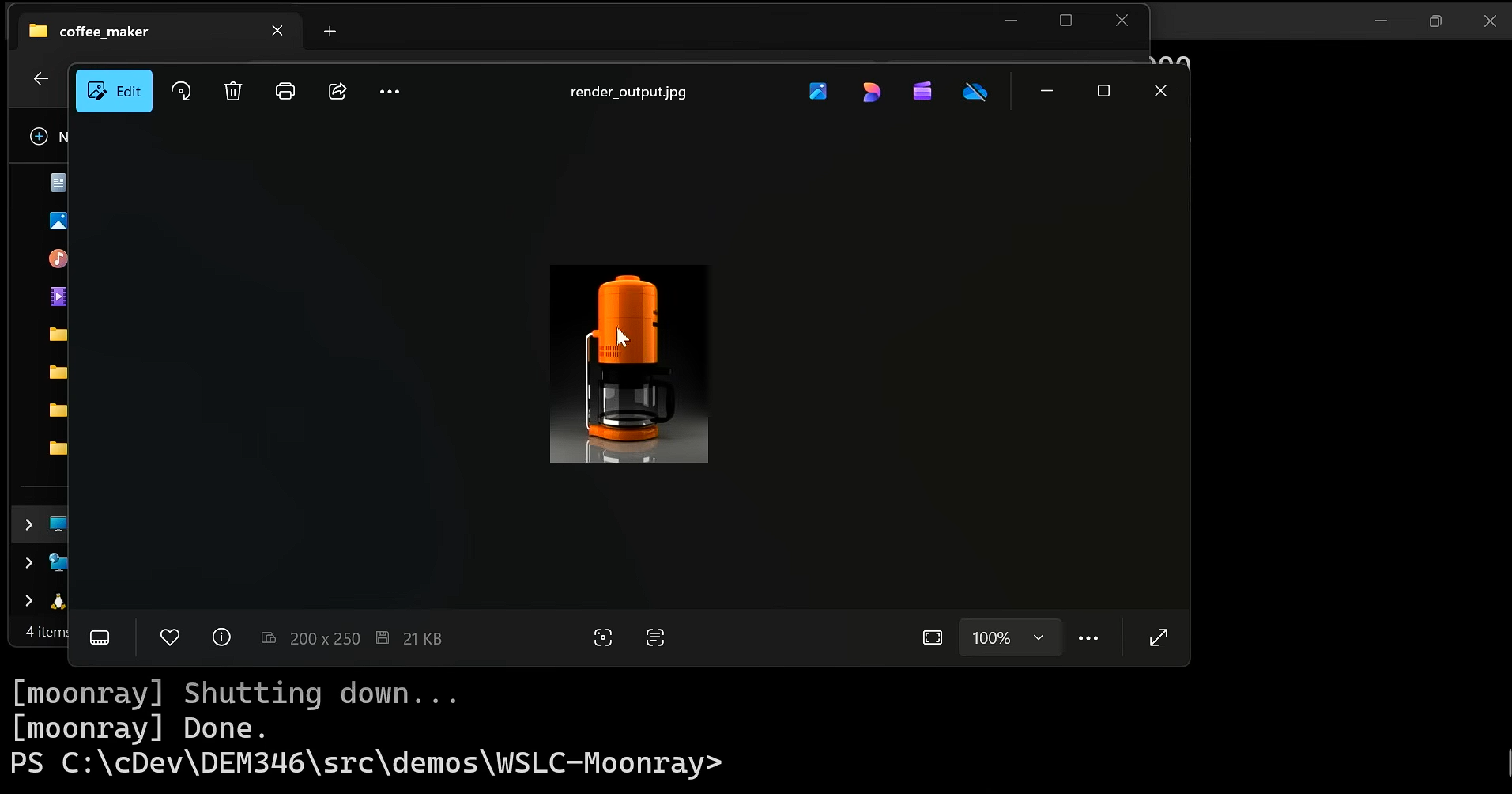
Every Windows application that uses the API gets its own Hyper-V-backed virtual machine, separate from every other app’s container. The CLI flow gets its own VM too. Docker Desktop, however, runs every container inside one shared VM, which as you’d expect is more efficient.
WSL Containers trade some resource efficiency for a hard isolation boundary between apps, which explains why Microsoft is pitching this as enterprise-ready.
That said, both entry points talk to the same WSL service that already manages your regular distros, and inside the Linux VM, the container runtime doing the real work is Moby, the open-source engine that also powers Docker. Note that WSL Containers is not reinventing containers. It is, instead, giving Windows a first-party front door to them.
How to install WSL Container on Windows 11
WSL Container only ships in the pre-release channel of WSL for now, so you will need to opt into that before wslc shows up on your PC.
- Open Windows Terminal or PowerShell as an administrator.
- Run wsl –update –pre-release and let it finish downloading.
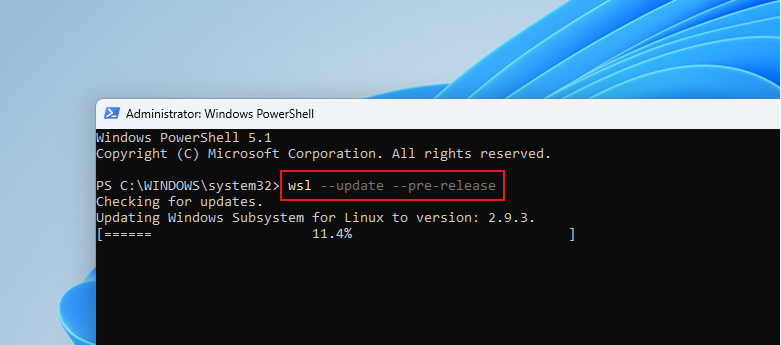
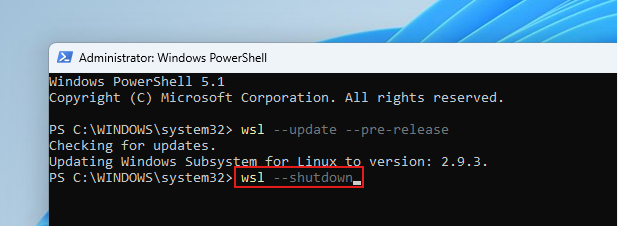
- Restart WSL with wsl –shutdown command, then close and reopen your terminal.
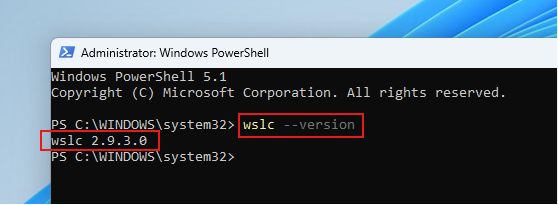
- Confirm the install with wslc –version. You should see the version number 2.9.3.0, which confirms WSL Container is installed.
- Run wslc –help to see the full command reference and confirm the binary is working.
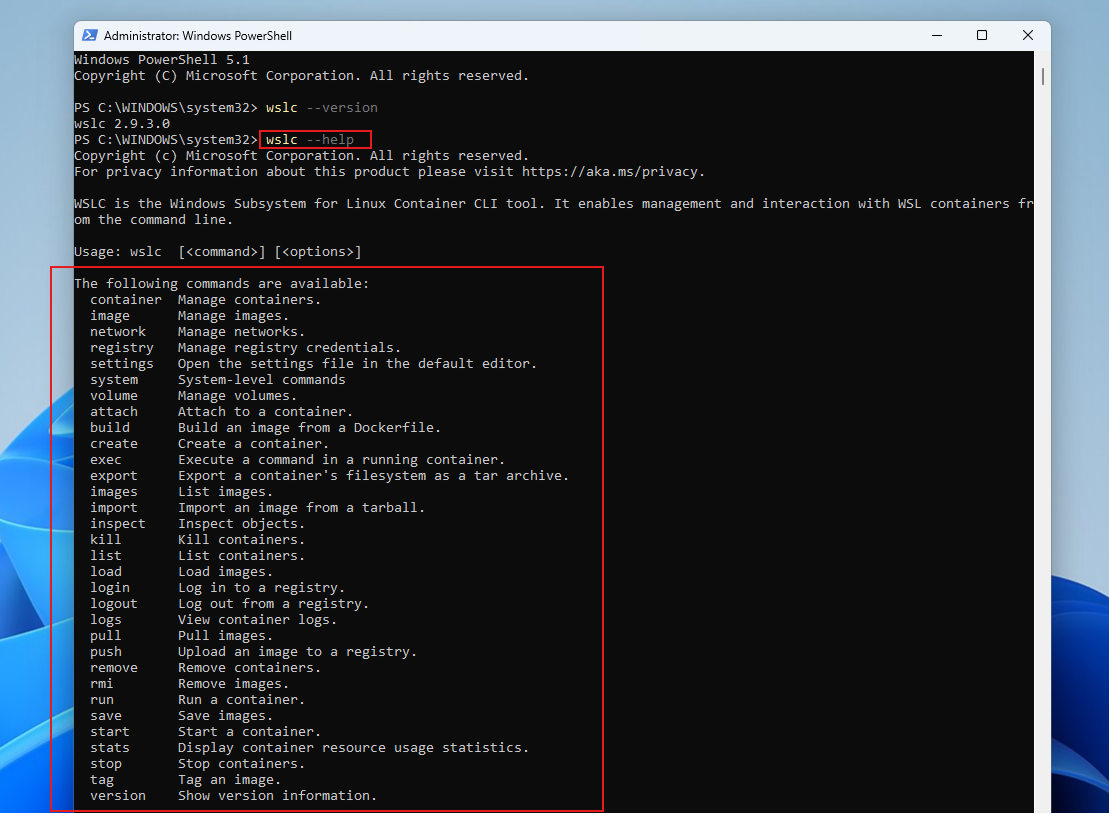
In our test machine, the update took under two minutes over a decent connection. If wslc is not recognized right after the update, restart your terminal, and if that does not help, restart the PC. Since it’s in the pre-release channel, there might be some rough edges, as a few developers on Microsoft’s own devblog reported a Catastrophic failure, Error code: E_UNEXPECTED when running their first container. Fortunately, we didn’t face the issue.
In case you are wondering, you do not need a Copilot+ PC to try this since WSL Container ships as a plain WSL component, but the Hyper-V-backed isolation model needs the support of modern virtualization, so a recent CPU with virtualization enabled in BIOS or UEFI counts for more here than it does for a regular WSL distro.
Building and running a container with wslc
Once wslc was working, we skipped the basic hello-world example everyone else is running and went straight to something closer to real use, building a custom image from a Containerfile and exposing a working service from it.
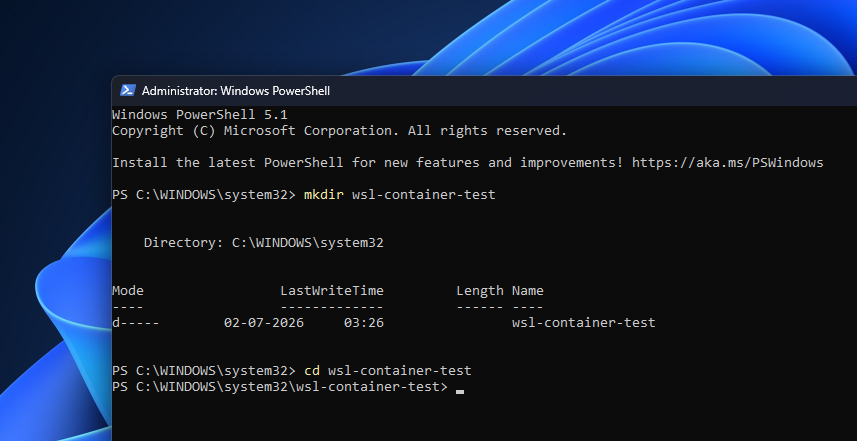
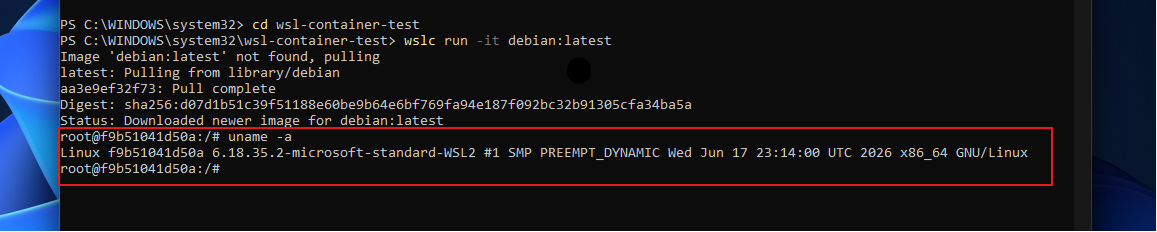
First, a quick sanity check. We pulled and ran a Debian container interactively:
wslc run -it debian:latest
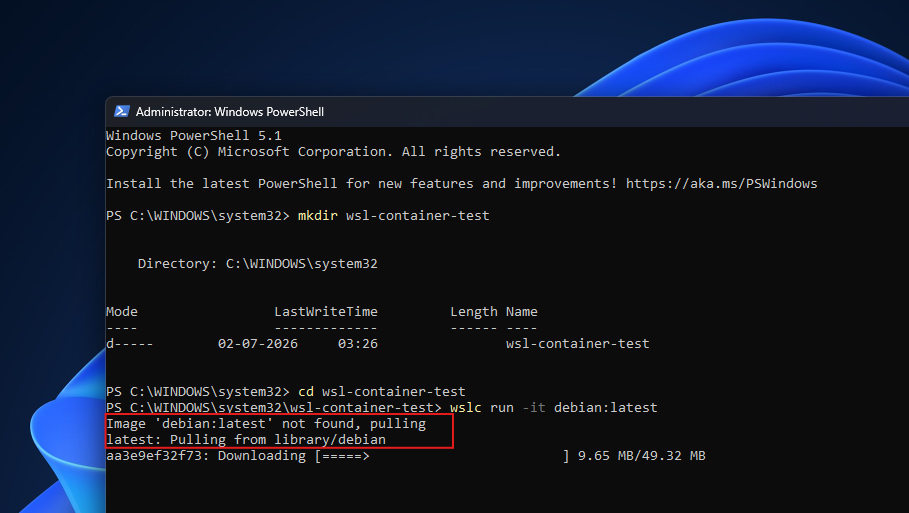
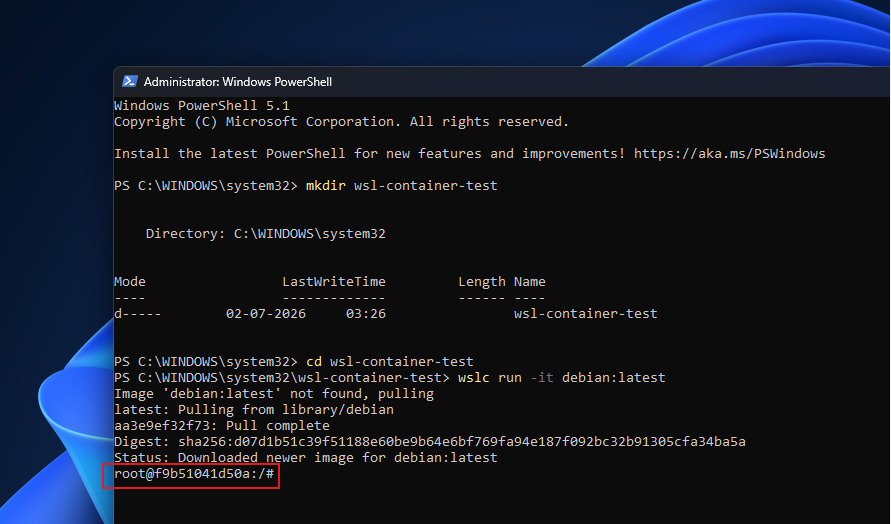
Inside the container, running uname -a returned a Linux kernel string tied to WSL2, confirming we were sitting inside a real Linux environment instead of some translation layer.
Detaching with Ctrl+P, Ctrl+Q and running wslc ps -a listed the container by its autogenerated name (mossy_sawtooth), alongside how long ago it started and its current status.

Reattaching with wslc attach mossy_sawtooth dropped us straight back into the same shell.

Next, we wrote a Containerfile, which works the same way a Dockerfile does, to package a small Linux inspection utility that runs file, exiftool, and binutils against whatever gets dropped into it.
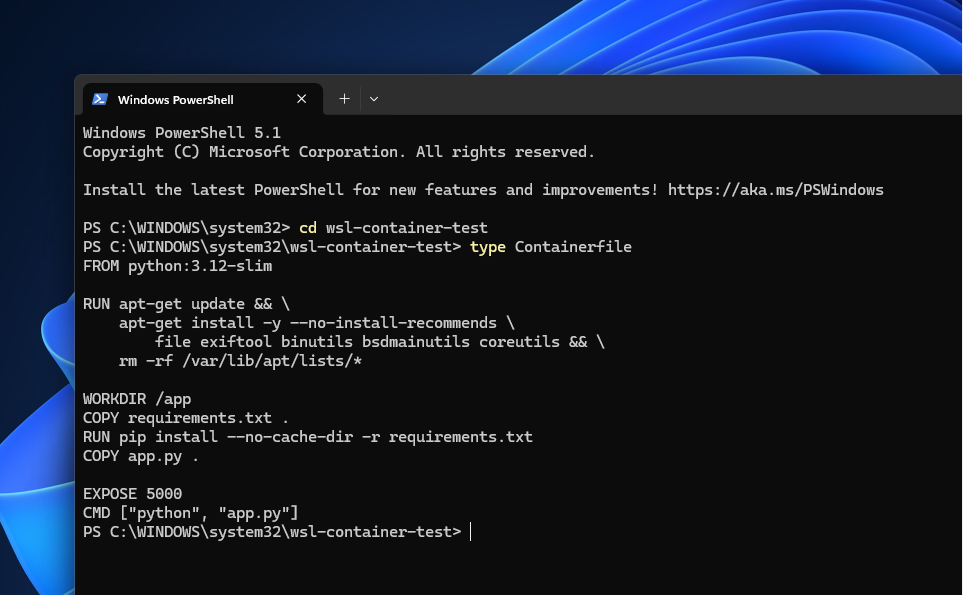
Here is roughly what that file looked like:
FROM python:3.12-slim
RUN apt-get update && \
apt-get install -y –no-install-recommends \
file exiftool binutils bsdmainutils coreutils && \
rm -rf /var/lib/apt/lists/*
WORKDIR /app
COPY requirements.txt .
RUN pip install –no-cache-dir -r requirements.txt
COPY app.py .
EXPOSE 5000
CMD [“python”, “app.py”]
Building it was one command:
wslc build -t my-linux-inspector .
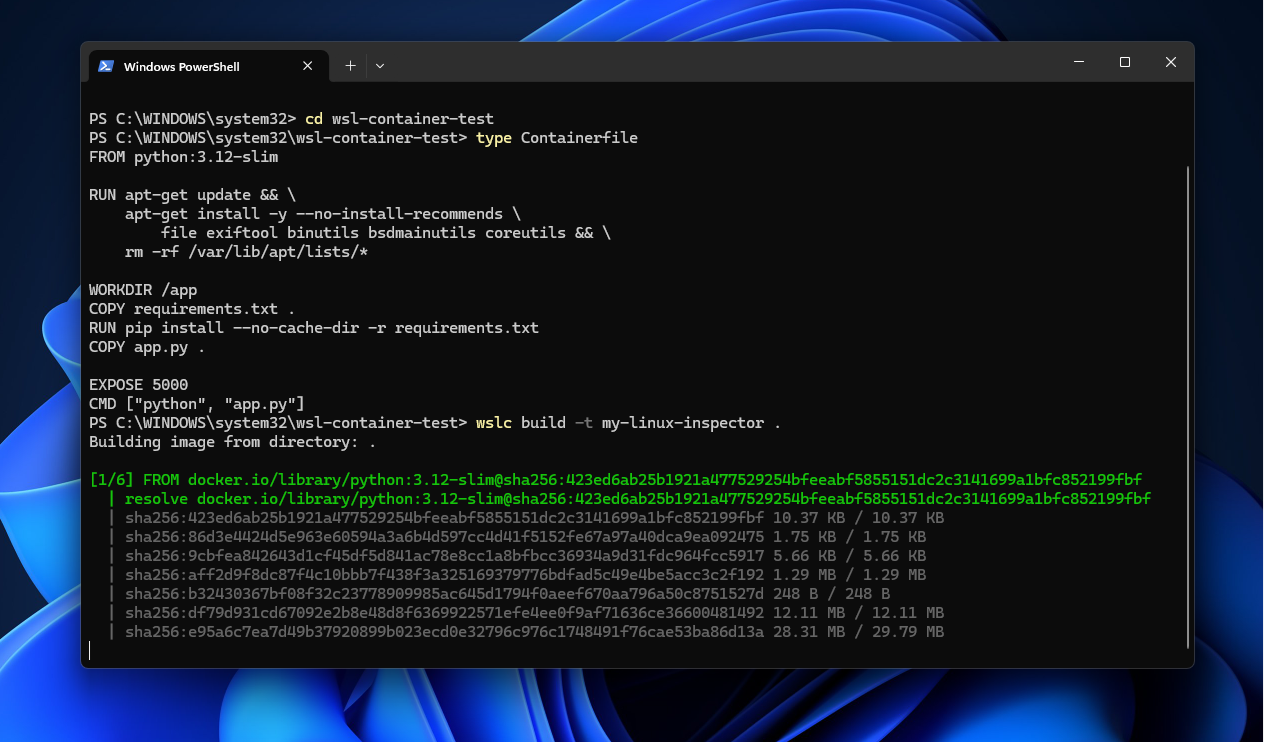
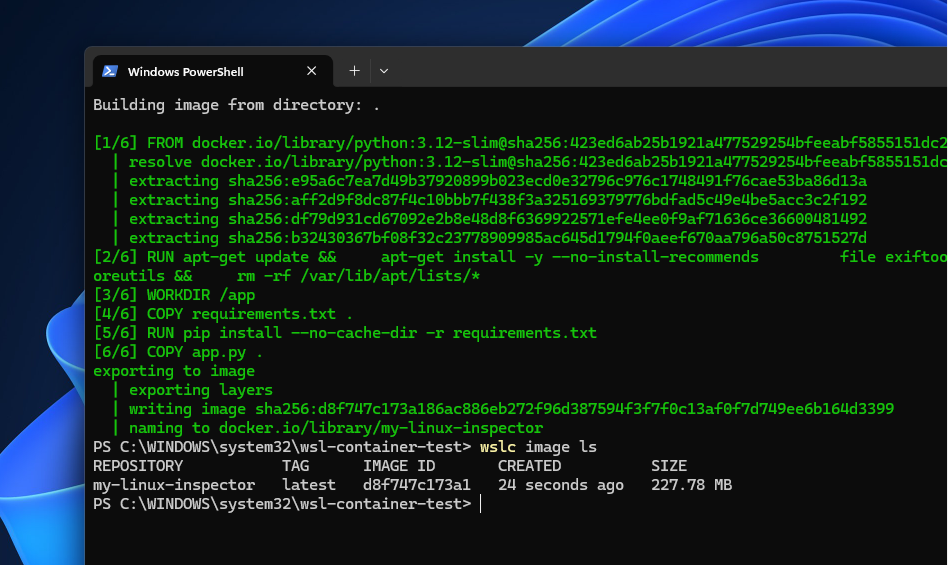
The build cached its base layers, so a rebuild finished in seconds instead of minutes. Running wslc image ls confirmed the image existed locally with a fresh timestamp.
From there, we started the container with a port mapping so the Flask server running inside Linux could be reached from Windows:
wslc run -d -p 5000:5000 –name inspector my-linux-inspector
Loading 127.0.0.1:5000 in a browser on the Windows side brought up the tool’s web interface without any extra networking setup.
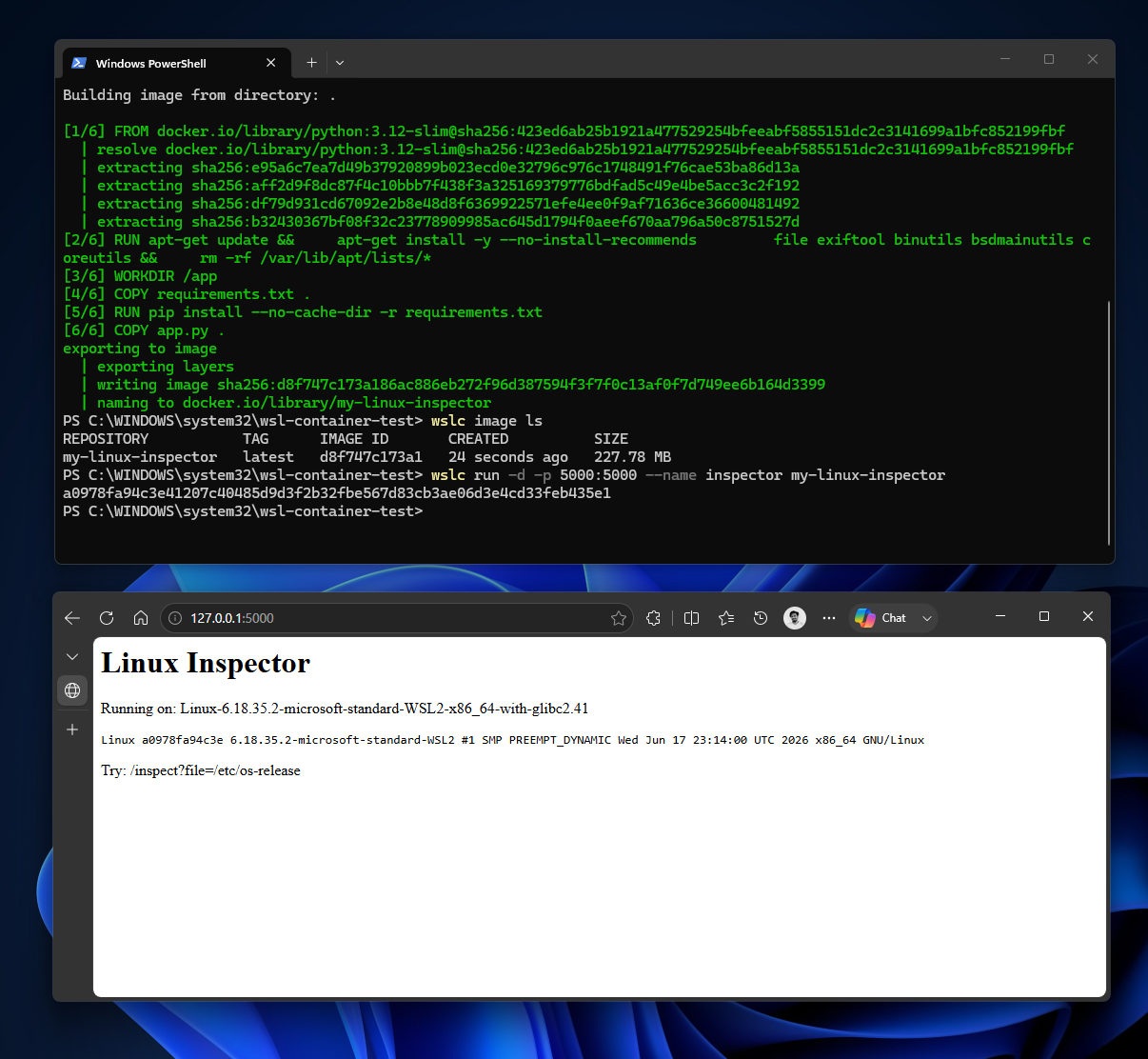
A service running on a Linux kernel, reachable through localhost on Windows, with zero third-party software installed, sums up WSL Container in one sentence.
Testing GPU access inside a WSL container
GPU passthrough is the feature most developers doing AI or machine learning work will care about most, since it decides whether a Linux container can reach the graphics card instead of running on the CPU alone. WSL Container supports this through a --gpus all flag, the same syntax Docker users already know:
wslc run --rm --gpus all pytorch/pytorch:2.5.1-cuda12.4-cudnn9-runtime \
  python -c "import torch; print(torch.cuda.is_available())"
The clip below shows this in action, a container reaching the GPU directly, then racing a compiled PyTorch model against the same model running in plain eager mode. The gap between the two is not subtle.
WSL Container for enterprise environments
Microsoft is pitching WSL Container as enterprise-ready from the preview stage.
Microsoft Defender for Endpoint’s existing WSL plugin now understands container events, so security teams monitoring WSL distros get the same visibility into containers without deploying separate tooling, though the feature is currently limited to a private preview with its own signup form.
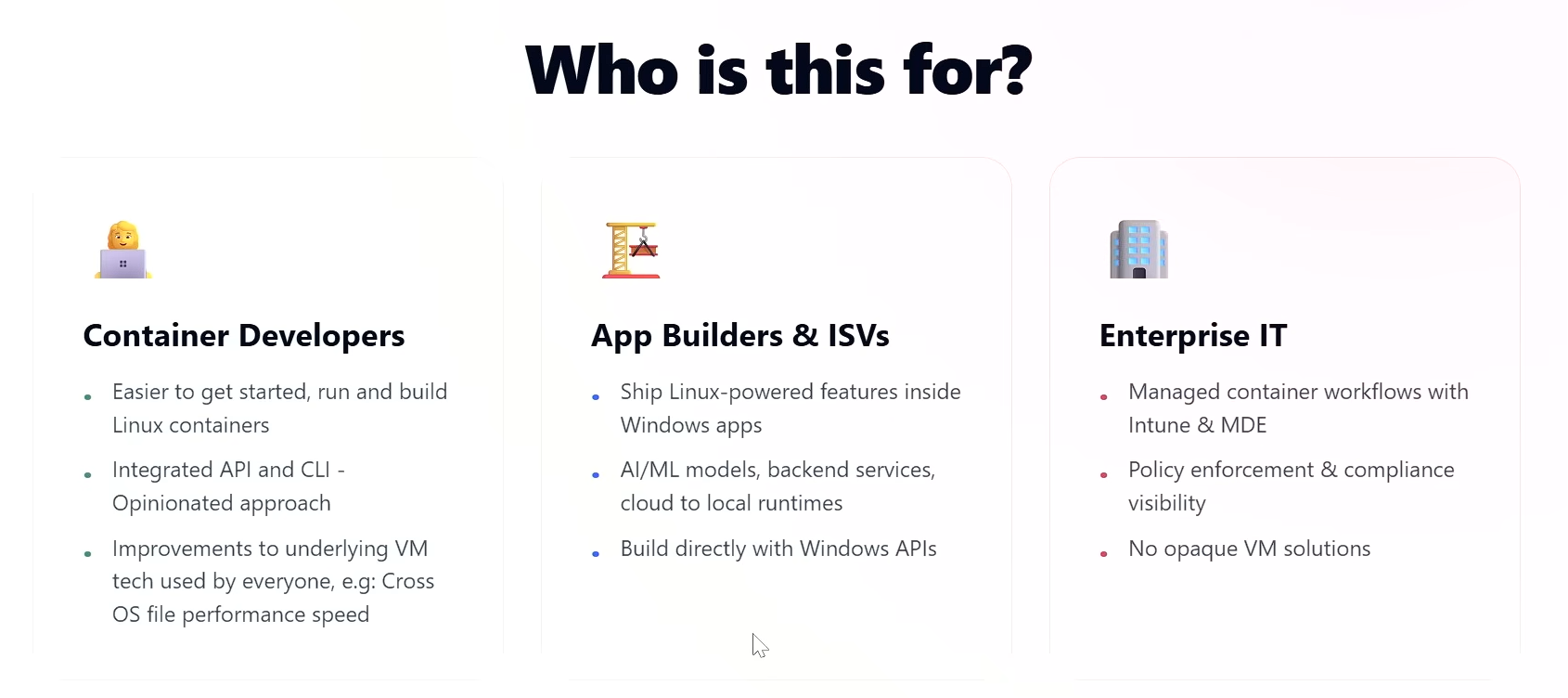
IT admins can already control WSL Container today through Group Policy and an ADMX policy, with two capabilities that count most in a managed fleet:
- First, admins can decide whether people in their organization are allowed to use WSL distros, containers, or both.
- Second, and this is the one Microsoft says came up constantly in customer requests, admins can set an allowlist of which container registries are permitted, so a company can restrict pulls to an internal or approved registry instead of leaving Docker Hub wide open.
We expect full Intune dashboard support for these settings within a few weeks of the preview shipping.
VS Code’s Dev Containers extension also picked up wslc support starting in version 0.462.0-pre-release. Switching to it just means opening Dev Container settings, finding the Docker Path field, and changing it to wslc, no need to reinstall extensions or reconfigure projects.
What is still missing from WSL Container
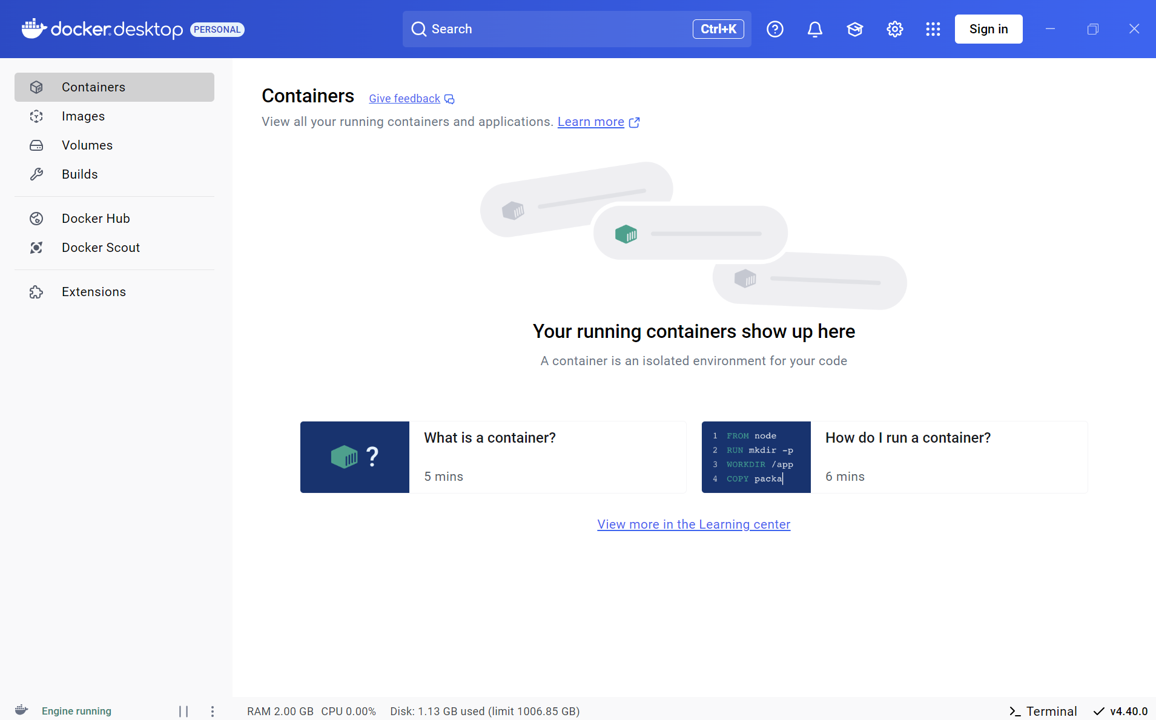
WSL Container does not ship with anything resembling Docker Compose at this stage, so multi-service projects that use a compose.yaml file to bring up a database, a backend, and a cache together are not a good fit yet. Every container we tested had to be started individually.
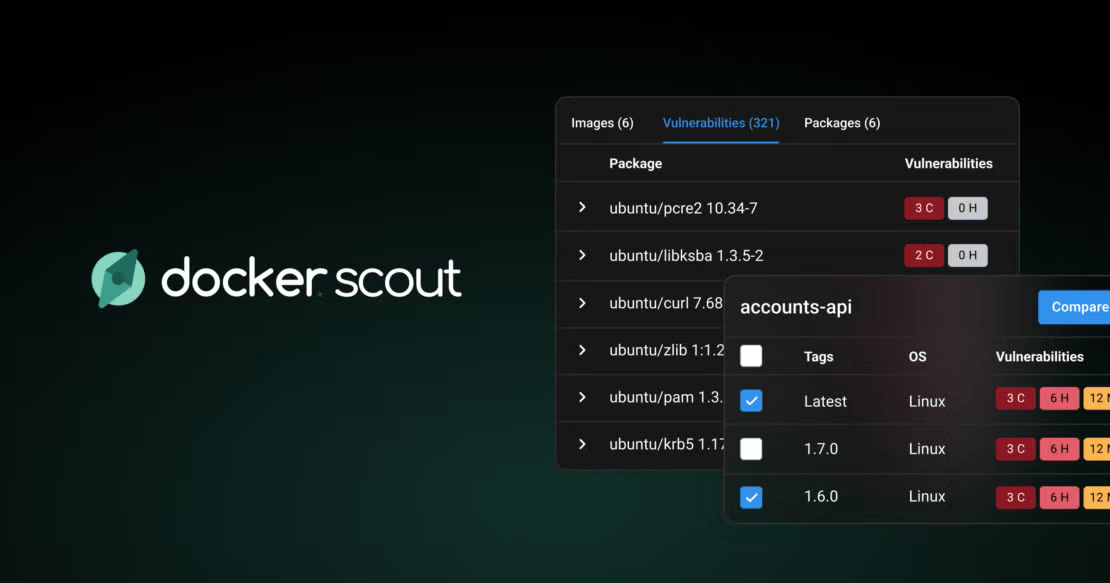
And of course, the biggest omission is that there is also no GUI dashboard, or anything like Docker Scout for scanning images. Also, the extensive plugin ecosystem that Docker Desktop has built up over the years does not exist here. WSL Container is not meant to replace Docker Desktop, Podman Desktop, or Rancher Desktop, and all three of those tools stand to benefit from the same low-level platform work, including the new virtiofs file system that Microsoft says makes Windows file access twice as fast inside containers.
Networking has also been reworked with an experimental mode called Consomme, which relays Linux traffic through the Windows networking stack instead of the older NAT setup, aimed at fixing the VPN and proxy compatibility issues that have annoyed WSL users for years. Both virtiofs and Consomme are currently exclusive to WSL Container, though Microsoft has said it wants to bring them to regular WSL distros eventually.
Should you switch from Docker Desktop yet
For a single container running a database or a small service during local development, WSL Container already does the job without asking for a separate license. For anything that needs Compose files, multiple linked services, or Docker’s extension ecosystem, Docker Desktop is still the more complete tool for now.
Microsoft is targeting WSL Container’s general availability for fall 2026, and given how closely the CLI’s syntax already tracks Docker’s, most of what is missing looks like a matter of when rather than if.
If you already run Linux container workloads on Windows, running the pre-release build alongside Docker Desktop costs nothing and gives WSL Container a head start before it becomes the default choice.
The post I built a Linux container on Windows 11 without Docker Desktop, and Docker users should pay attention appeared first on Windows Latest